Canva is the better pick for most people who want AI help making social posts, flyers and slides. It has the most AI tools and the widest range of templates, and it is the easiest to hand to a team. Adobe Express wins if you care about commercially safe image generation or already pay Adobe. Microsoft Designer is the quick, cheap option if you already have Microsoft 365, but it has the least control.
That's the short version of canva vs adobe express in 2026, with Designer as the third contender. The longer version matters because the three have drifted apart this year. Canva keeps adding AI tools and now sells a pro suite built on Affinity. Adobe Express is leaning on its Firefly models and an AI Assistant that is still labeled beta. Microsoft has folded Designer into its Microsoft 365 subscriptions and retired brand kits.
Below: what each one's AI does, what the free plans give you, what you'll pay, what the terms say about commercial use, and a picker at the end of the buying advice so you can weight the criteria yourself. If you want to look beyond these three, the Top 150 AI Graphic Design Tools board ranks the wider field.
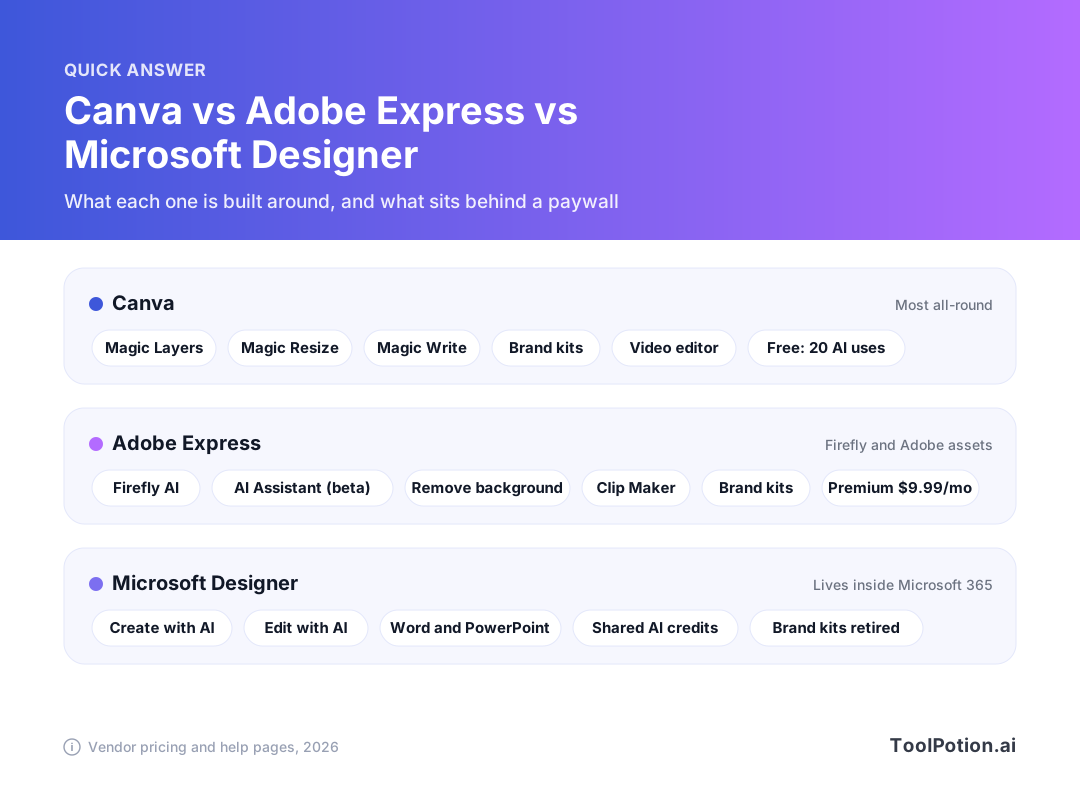
The chart above is the whole article in four lines. Each section below fills in the detail and flags where the vendors' own wording leaves gaps.
Canva vs Adobe Express vs Microsoft Designer: the quick differences
The three make different bets. Canva bets on breadth: one editor that does posts, presentations, video, documents and now a pro design suite. Adobe Express bets on trust and ecosystem: Firefly models trained on licensed content, Adobe Stock assets, and links into Photoshop and Illustrator. Microsoft Designer bets on being already there, inside the subscription you pay for Word and PowerPoint.
None of these is a professional layout tool. If you do print production or brand identity for a living, the Top 250 AI Tools for Graphic Designers board is a better starting point. This piece is for people who need a decent flyer by Thursday.
| Canva | Adobe Express | Microsoft Designer | |
|---|---|---|---|
| Free plan | Yes, up to 20 AI uses | Yes, 100,000+ templates, limited daily generative uses | Needs a Microsoft 365 Personal or Family account, per Microsoft's help page |
| Entry paid plan | Pro, $144 a year | Premium, $9.99 a month | Microsoft 365 Personal, $99.99 a year |
| Brand kits | 1 free, 5 on Pro, 100 on Business | Multiple brands, web setup | Retired |
| Team plan | Business, $250 a year per person | Teams, $4.99 a month per license in year one, then $7.99 (2-seat minimum) | Not offered to enterprise users |
| Written AI indemnity | Eligible enterprise customers | Enterprise plan with Firefly | Not for Designer; Microsoft's commitment covers commercial Copilot products |
AI features: what each one actually does
Canva: the longest AI menu
Canva's AI page lists Magic Layers, a Canva AI assistant, Canva Code, Magic Resize, Magic Animate, Magic Write, Translate, Magic Insights and Magic Formulas, plus image, video and music generation. For a non-designer the useful ones are the plainest. Magic Resize turns one Instagram post into a story and a banner. Magic Write drafts captions. The Canva AI Image Generator and AI Video Generator cover making assets from a prompt, and the Canva Logo Maker handles the first-draft logo.
Canva has also announced a pro suite that ties Affinity, Cavalry, Flourish and Leonardo together (Canva newsroom). Core Affinity and Cavalry stay free, and Canva says the AI Studio features unlock with a premium Canva plan. That's aimed at designers, not at someone making a bake-sale flyer, but it shows where the money is going.
Adobe Express: Firefly and a growing assistant
Adobe's Express page lists text-to-image, AI logo creation, text effects, generative video and an AI Assistant marked beta that lets you prompt, create and edit. The practical tools are background removal, resizing across formats, auto-captions, and Clip Maker, which turns long video into short clips. The Free Image Background Remover is a good sample of the quality, and generation is powered by Adobe Firefly.
Credits matter more here than in Canva. Premium includes 250 monthly generative credits, and the pricier Firefly Pro plan ($19.99 a month) lists 4,000 credits, Photoshop on web and mobile, and enough credits for up to 40 five-second videos (Adobe pricing). If you generate a lot of video, that credit counter is what you'll run into first.
Microsoft Designer: simple on purpose
Microsoft's help page describes two tabs. Create with AI generates images from text. Edit with AI removes or blurs backgrounds, restyles photos and adjusts them. You can also start from templates, and Designer pieces show up in Teams, Outlook, Word for the web, OneNote and PowerPoint.
What's missing is the point. Microsoft says Brand Kits and stock videos were being discontinued from late last year. No brand kit means no saved fonts and colors that a team applies in one click. For one person making a quick birthday invite, fine. For a small business that wants every post to look the same, that's a real gap.
Background removal, resizing and video side by side
These three jobs cover most of what non-designers do with AI, so they deserve their own comparison. Canva puts background removal and Magic Resize on Pro, along with its full video editor. On the free plan you get basic video features only. If you post the same message to several channels, Magic Resize is the feature that pays for the plan on its own, because it saves rebuilding each size by hand.
Adobe Express treats the same jobs the same way. Background removal and bulk resize are the premium features Adobe names when it explains why free users upgrade. Video is Adobe's stronger side for short clips: auto-captioning, video resizing and trimming, and Clip Maker for cutting a long recording into short pieces. If your content is mostly talking-head video for social, that list is more specific than anything Canva's pricing page claims.
Designer handles background removal and blur inside Edit with AI. Microsoft's help page doesn't describe a resize tool or a video editor, and it says stock videos were being removed from the Visuals tab. So Designer is for still images. If you need a vertical video with captions by this afternoon, it's the wrong tool.
Neither Canva nor Adobe publishes a head-to-head quality benchmark, so any claim that one cuts out hair better than the other is opinion. The quick test is free: run the same product photo through Canva's photo editor and Adobe's remover and compare the edges on a busy background.
Free plans and AI limits
Free is where the three differ most in feel. Canva's free plan lets you try up to 20 Standard or Premium AI uses and has one brand kit with three colors. That's enough to know if you like it and not enough to run a month of posts. Pro adds 5 brand kits, background removal and Magic Resize, and Canva describes its AI allowance as 10x the free plan.
Adobe Express's free plan has more templates in view (100,000+ static and video templates), 5GB of storage and limited daily generative uses. Premium features such as background removal and bulk resize sit behind the paywall, which is the same tension as Canva: the thing you want on day two is the thing that costs money.
Designer is harder to pin down. Microsoft's help page says you need a Microsoft 365 Personal or Family account to use it, and says it is not available to enterprise users. It describes no free tier, so don't plan around one. If you see a free option when you open Designer with your own account, treat it as a bonus that Microsoft can change.
What each plan costs
Prices below are US list prices from each vendor's pricing page. Canva Pro is $144 a year for one person, and Canva says only one person can use a Pro account. Business is $250 a year per person and bills only for team members who accept an invitation (Canva pricing). Adobe Express Premium is $9.99 a month billed monthly, and Teams is $4.99 a month per license for the first year, then $7.99, with a two-seat minimum, according to Adobe's Teams terms. Microsoft 365 Personal is $99.99 a year, Family $129.99 and Premium $199.99 (Microsoft).
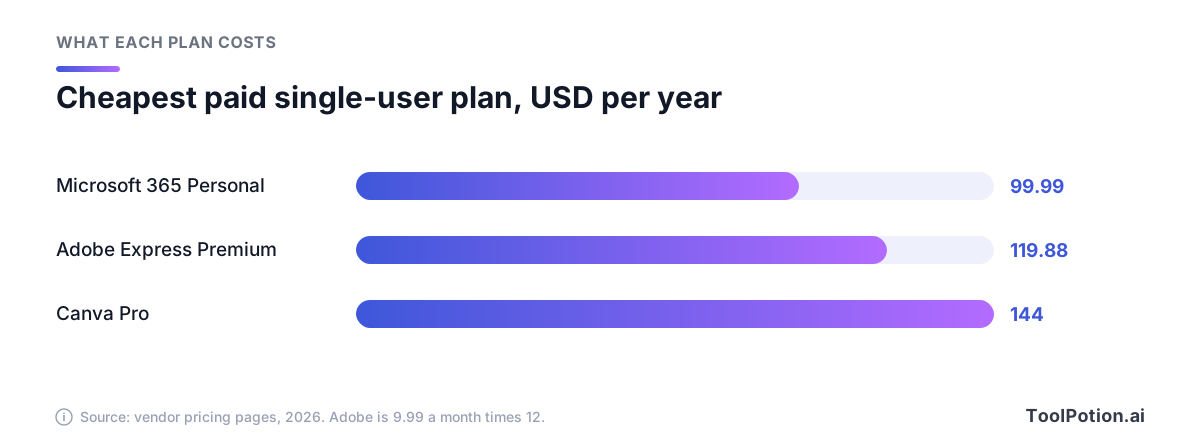
Designer looks cheapest, but you're really buying Office with it, so the comparison only holds if you'd pay for Microsoft 365 anyway. Between the two standalone options, Adobe Express is the cheaper entry point. The gap grows with a team, which the calculator below shows.
Read the Canva Pro line carefully: because a Pro account is one person, a team of five on Pro is five separate accounts, which is why Business ends up being the plan teams actually need. Adobe Teams is the cheapest per seat on the table, though it has the temporary first-year price.
Commercial use and AI indemnity
This is the section most small businesses skip and shouldn't. Two separate things are at stake: whether you can use the output commercially, and who pays if someone sues.
On the first, the news is good everywhere. Canva's AI product terms let you use output for any lawful purpose, with an important catch: if the AI modifies Canva library content, your ownership is subject to that content's license. Adobe says you may generally use outputs from generative AI features commercially, except beta features that Adobe marks as personal use only. Adobe also says Firefly models were trained on licensed content such as Adobe Stock and public domain material.
On the second, protection is thinner than the marketing suggests. Canva's Shield page says eligible enterprise customers are indemnified for Magic Studio output at no extra cost. A third-party legal summary reads Canva's terms as requiring a 100-seat minimum and excluding Free and Pro users (terms.law), and Canva's own terms say it accepts no liability for the accuracy of output. Adobe's FAQ describes an Express and Firefly enterprise plan that includes indemnification for select workflows. Microsoft's Customer Copyright Commitment, announced in 2023, covers paid commercial Copilot services (Microsoft), and Designer is not among the products named in that announcement.
In plain terms: a solo owner or a ten-person shop gets no written IP promise from any of the three. Adobe's licensed-training story is the strongest comfort at that size, and it is a description of training data, not a guarantee. Don't generate anything that looks like a real person, a celebrity or someone else's logo on any of them.
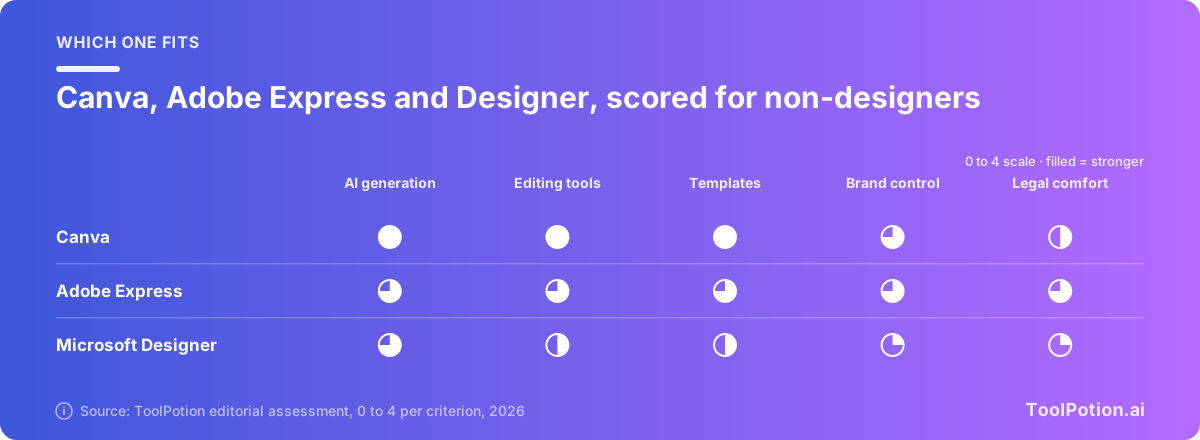
The scorecard is an editorial judgment, not a lab result. Canva scores highest on features and Adobe Express edges it on legal comfort, but only because of its training-data story. Designer's low brand-control score reflects the retired brand kits.
Templates, brand kits and collaboration
Adobe Express says it has 100,000+ templates. Canva's pricing page doesn't give a count, so there is no verified number to set against it, but in practice Canva's template choice is the reason many teams stay. Brand control is where Canva pulls ahead on paper: one brand kit on Free, 5 on Pro, 100 on Business and 1,000 with tiered approvals on Enterprise.
Adobe's approach is different. You can set up multiple brands on the web, and teams get an admin console, 1TB of cloud storage per user and shared Creative Cloud Libraries, so assets from Photoshop and Illustrator stay synced. If your designer works in Adobe apps and you finish the posts in Express, that pipeline is a genuine advantage Canva can't copy. Canva answers with Affinity and a Brand Kit integration in its own suite.
Collaboration on Designer runs through the Microsoft apps you already use. That's convenient for a PowerPoint deck and less so for a shared social calendar, which has no brand kit to hold it together.
Which one should you pick?
Start with what you already pay for, then what you need to keep consistent. The map below is the same logic in diagram form.
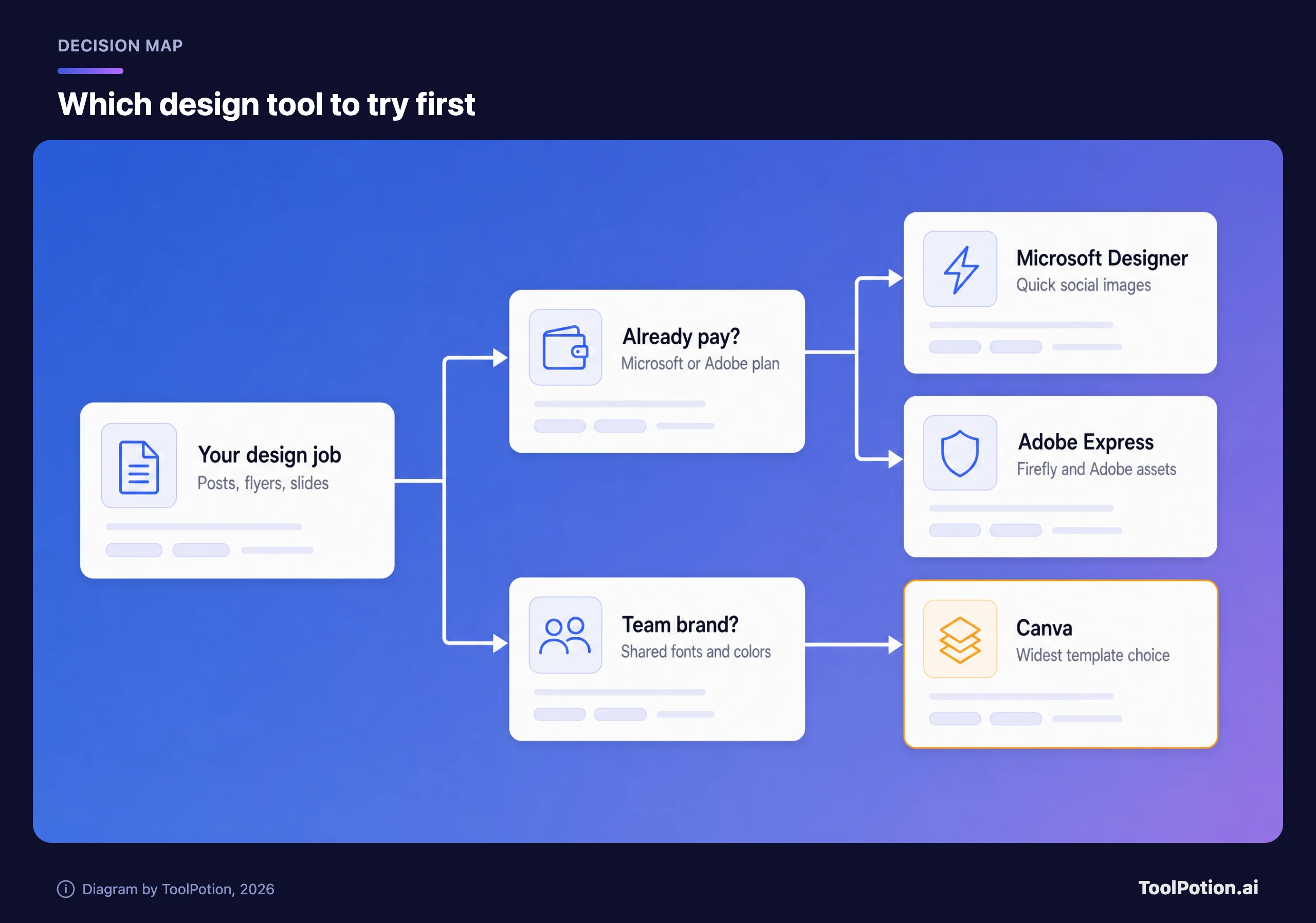
- Pick Canva if you make posts, slides and short videos weekly, or you want a team to share templates and brand kits. Pay for Pro if you work alone and Business if more than one person designs.
- Pick Adobe Express if you already pay for Creative Cloud, you want Firefly's licensed-training approach, or you want the cheapest per-seat team plan.
- Pick Microsoft Designer if you have Microsoft 365 and need occasional images or a quick invite, and you don't care about brand kits.
- Skip all three for print-ready work or complex brand systems. Look at Kittl for type-led graphics or Visme for data-heavy presentations, and see our AI presentation makers board.
If you can't decide, the picker lets you weight what matters. Slide the priorities and watch the order change.
The ratings behind that picker are editorial, so treat the output as a tiebreaker. The cost and legal sliders are the ones that most often flip the result away from Canva.
A safer way to use AI in any of them
Whichever you choose, the habit that protects you is the same. Write a short brief, generate, then check the output before you brand and export. The check step is where small businesses get into trouble, and it's the cheapest step.
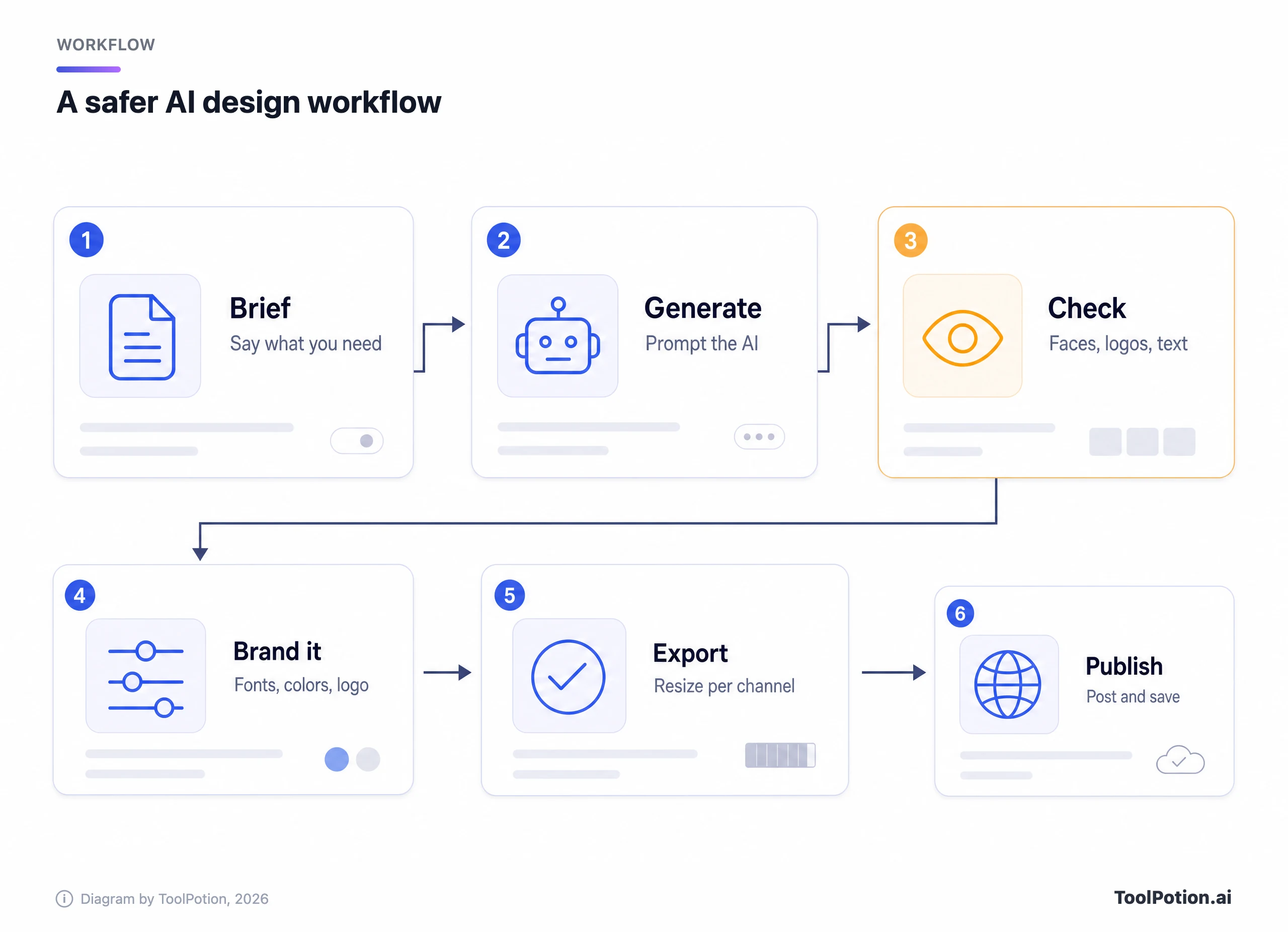
In step three, look for faces that resemble real people, garbled text, and anything that looks like another company's logo. Then apply your fonts and colors and let a resize tool produce the channel versions. For a longer view on image models themselves, see AI Image Generators Compared and the Top 10 AI Graphic Design Tools in 2026.
Frequently asked questions
Is Canva or Adobe Express better?
For most beginners and small teams, Canva, because of its AI breadth and brand kits. Adobe Express is better if you already use Adobe apps or want the cheaper team seat. Both have free plans, so try the same flyer in each.
Is Microsoft Designer free?
Microsoft's help page says you need a Microsoft 365 Personal or Family account, and describes no free tier. Check what your own account shows before relying on anything free.
Can I use AI images from these tools commercially?
Generally yes. Canva's terms allow any lawful use, with the Canva library license caveat, and Adobe allows commercial use of Firefly outputs except marked beta features. Neither promises to pay your legal costs unless you're an eligible enterprise customer.
Which is cheapest?
Microsoft 365 Personal at $99.99 a year is the lowest sticker price but includes Office. Among standalone tools, Adobe Express Premium is $9.99 a month against Canva Pro at $144 a year.
Does Designer have brand kits?
Not anymore. Microsoft's help page says Brand Kits were discontinued, with a deadline set for late last year. If brand consistency matters, use Canva or Adobe Express.
Do I need Canva Business instead of Pro?
If more than one person designs, yes. Canva says a Pro account is for one person, while Business bills per accepted team member and raises the AI allowance to 20x the free plan.