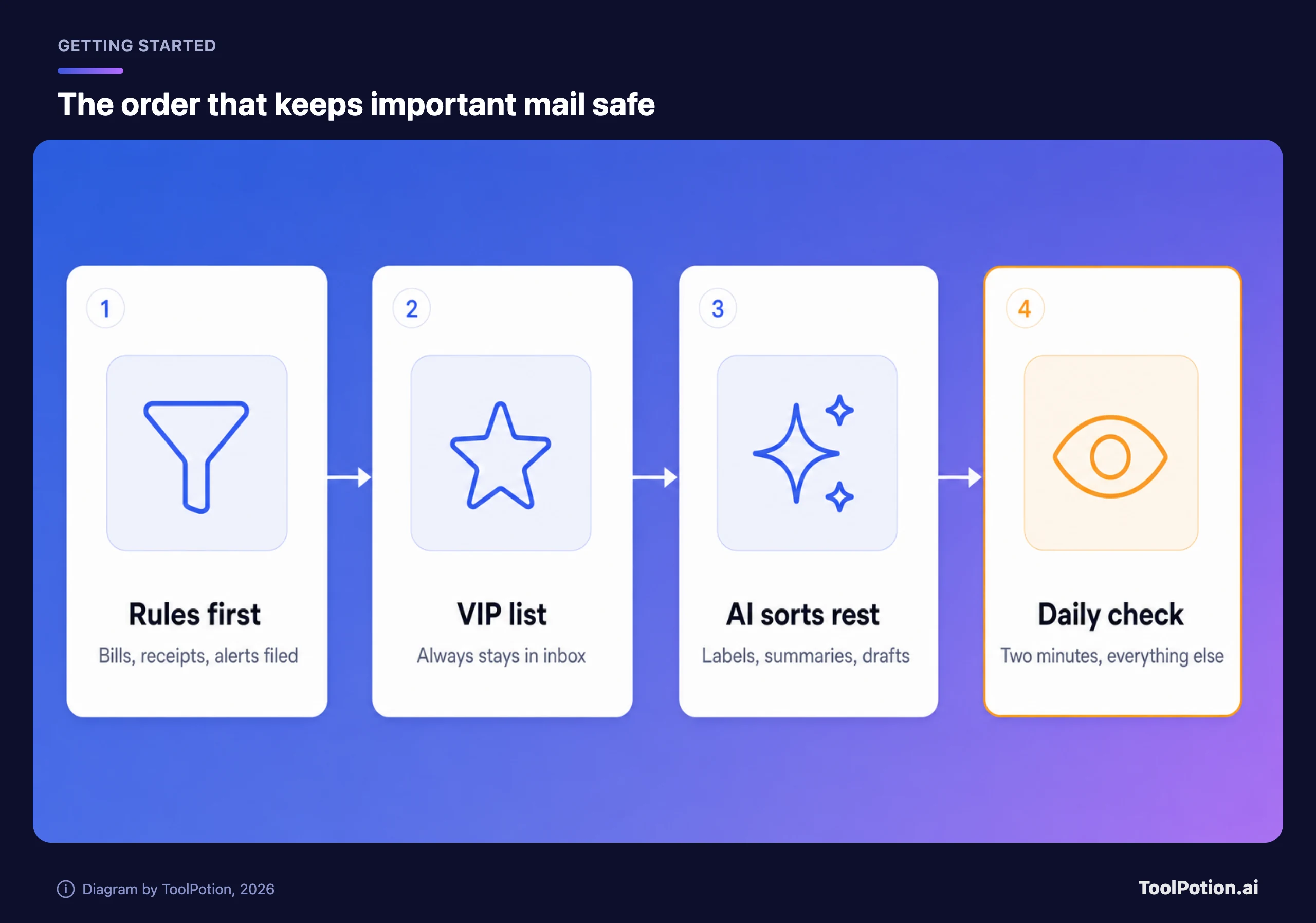
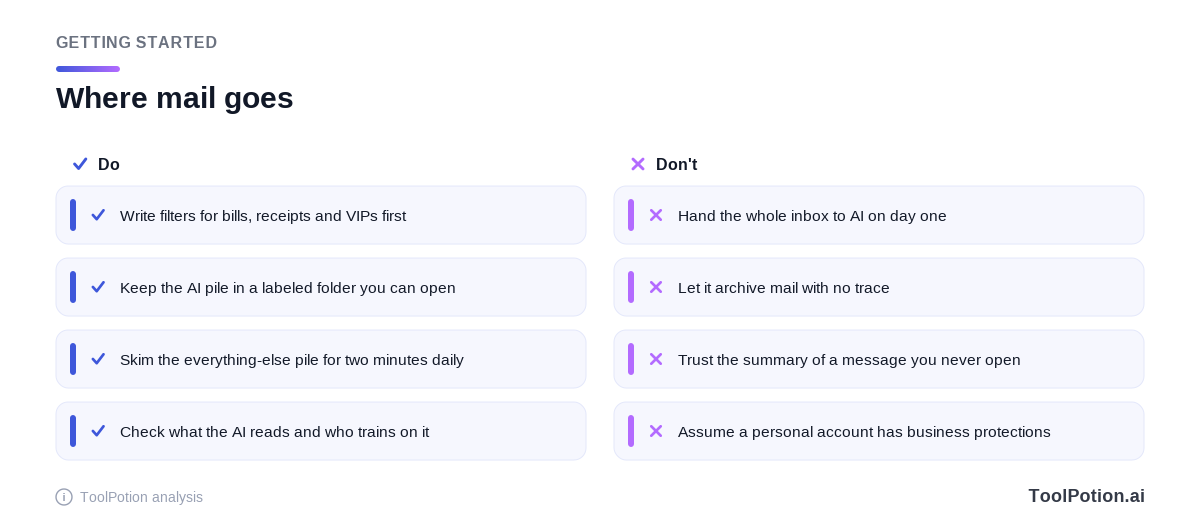
Set up filters and a VIP list before you switch any AI on, let the AI sort what's left, and open the pile it sorted for two minutes a day. That order costs an afternoon, and it separates an assistant that saves time from one that quietly buries the one email you needed.
This is built from vendor documentation and pricing pages, not from our own inbox. We haven't run a month of mail through each product.
Rules first, because they never guess
A filter does the same thing every time. An AI model gives a good answer most of the time, and for email the gap between those two is where the missed invoice lives. So the first hour goes to deterministic sorting.
- List the senders you can name: banks, landlords, payroll, school, your accountant, your biggest clients. These are your VIPs.
- Create a filter or rule for each VIP (label, star, keep in the inbox) so their mail stays in the main inbox no matter what an AI later decides.
- Create filters for the boring bulk: receipts, shipping updates, calendar notices, newsletters. Send them to a labeled folder.
- Only then turn on the AI features, and point them at what remains.
In Gmail, a filter is built from the search box: run the search, click Create filter, pick the action. Google lists labeling, archiving, starring, deleting and forwarding. In Outlook, right-click a message and choose Rules, or open Settings, Mail, Rules on Outlook.com. Microsoft notes that a rule only touches mail that arrives after you create it unless you run it by hand on existing mail.
Gmail with Gemini
Gemini in Gmail can summarize long threads, draft and refine replies, and organize the inbox (Google's help page gives deleting emails and adding labels as examples). Its own caveat is short: "This feature requires an eligible Google Workspace or Google AI plan." The page also says personal accounts can reach it through Google Workspace Experiments, a trusted tester program, so a free Gmail address may not have it.
The help page doesn't say whether Gemini asks before it deletes or labels, so find out before you hand it a bulk cleanup. We wouldn't turn on a delete action until labeling had been right for a few weeks.
For a business domain, Workspace's pricing page lists "Gemini AI assistant in Gmail" in the Starter plan, and the higher tiers add more. Our copy of the page showed Malaysian ringgit, so we won't quote a dollar figure. Check your own region before you budget.
Outlook with Microsoft Copilot
Copilot in Outlook drafts emails and summarizes long threads. Microsoft's pricing page lists it in Business Premium with Copilot, Business Standard with Copilot and the Copilot Business add-on. If you aren't already on Microsoft 365, it is the more expensive route: the add-on is sold only to existing customers with an eligible Business plan.
One setting catches admins out. Microsoft's privacy documentation says that if you turn off connected experiences that analyze your content, Copilot features won't be available in Outlook, Word, Excel, OneNote and PowerPoint. If Copilot vanishes from Outlook, ask about that switch before filing a ticket.
Dedicated tools
Superhuman separates marketing, cold pitches and social updates with Auto Labels, can archive them automatically, turns custom labels into inbox tabs and shows a one-line summary above each conversation. Auto drafts and custom auto labels sit on its Business plan. Shortwave leans on search: its plans differ by how many AI-powered filters you get (3, 10 or 50) and how many threads one AI search can read. For automatic draft replies it points to a sister product, Tasklet.
Both replace your mail client with theirs, which is mild lock-in: your mail stays at Gmail or Outlook, but your labels and habits live in the new app. To keep your client, browser add-ons such as Mailbutler, EmailWhiz and GPT for Gmail bolt summaries and drafts onto Gmail, and each adds another company that reads your mail. The AI email assistants board ranks the rest.
What each plan costs
| Setup | Price | Billing basis |
|---|---|---|
| Gmail with Gemini | Included from Workspace Starter up | Per user; list price varies by region |
| Microsoft 365 Copilot Business (add-on) | $18 a user a month (list $21) | Paid yearly, auto-renews; $18 is first-year promo pricing, offered through the end of 2026 |
| Microsoft 365 Business Standard with Copilot | $23.50 a user a month | Paid yearly, auto-renews |
| Superhuman Starter / Business | $25 / $33 per member a month | Billed annually |
| Shortwave Business / Premier / Max | $30 / $45 / $120 per seat a month | As listed on its pricing page |
Microsoft's own fine print says the promotional price applies to the first year only, so plan around the $21 renewal. And Superhuman's $25 Starter plan lacks auto drafts: if drafted replies are why you're buying, the real price is $33.
Privacy settings to check before you connect anything
An email assistant reads everything, so the defaults are the policy. Check what it can read, whether your mail trains a model, who else processes it, and whether the protection covers your account type.
Google's Workspace privacy hub says "Your content is not human reviewed or otherwise used for Generative AI model training outside your domain without permission." That is a business-account promise. The Gmail help page says only that Gemini in Gmail conversations aren't saved to Gemini Apps Activity and says nothing about training, so read the personal-account terms twice. Microsoft's documentation says "Prompts, responses, and data accessed through Microsoft Graph aren't used to train foundation LLMs, including those used by Microsoft Copilot," and that Copilot only surfaces data a user already has permission to see (see Microsoft's Copilot privacy page).
The dedicated tools make their own promises. Superhuman says, "We contractually prohibit our AI providers from using your data to train their models," and that it logs custom instructions to AI subprocessors but never email data (Superhuman). Shortwave says, "Your email content is never used to train third-party AI models," and names Google Cloud, OpenAI, Anthropic and Pinecone as providers (Shortwave security). We'd take those as vendor claims, not audits. Neither page states a retention period.
The two-minute check that makes it safe
Every AI sorter has a miss rate, and the misses land in the pile you stopped reading: the one the AI sorted for you. Keep one folder or label with a dull name, like Handled by AI, and open it once a day. Scan senders and subjects, not bodies.
If something important is in there, write the filter that would have caught it and add the sender to the VIP list.
Our picks by inbox type
A personal Gmail with a few hundred messages a week doesn't need a paid AI. Filters, the built-in categories and whatever summaries Google has rolled out to you are enough, and we'd keep the money.
A solo professional or small business on Google Workspace should start with Gemini in Gmail: the privacy terms are the clearest and there is no second vendor. A team already on Microsoft 365 should try Copilot in Outlook, since the AI is an $18 first-year add-on ($21 list) to a plan you pay for anyway. For a heavy inbox, Superhuman or Shortwave are the two worth the switch: Shortwave first if search across years of mail is your struggle, Superhuman if speed and auto drafts are. Our Microsoft 365 Copilot vs Gemini cost comparison goes deeper on the two big suites.
We wouldn't pay $120 for Shortwave Max unless Premier's limits (100 threads per AI search, 10 AI filters) stop you daily.
When it goes wrong
The usual failures are boring and predictable. A VIP's mail lands with the newsletters because they use a mailing platform: filter on the address, not the name. A summary drops the one sentence with the deadline: open the thread when a date or amount matters. A drafted reply sounds confident about something you never agreed to: read every draft, and see our guide to writing better emails with AI for steering the tone.
If an AI feature archives more than you expected, switch off auto-archive and keep the labels.
Frequently asked questions
Will AI email sorting delete my messages?
Not by default in what we read, but Google's help page doesn't say whether Gemini confirms deletions, and Superhuman's auto archive is a setting you turn on. Leave any delete option off until you trust the labeling.
Is it safe to let an AI read my work email?
It depends on the contract. Google and Microsoft both say business customer data isn't used to train their models (Google adds "without permission"), and Superhuman and Shortwave make similar statements for their AI providers. Those are vendor statements; your security team has the final say.
Do I need a paid plan for AI summaries?
Often yes. Google ties Gemini in Gmail to an eligible Workspace or Google AI plan, and Copilot is a paid add-on or bundle in Microsoft's business plans.
How do I stop important mail from being filed away?
Build the VIP filters first, never let the AI move mail out of the inbox without a label, and open the everything-else folder daily.
Should I switch to Superhuman or Shortwave?
Only if email is a large part of your day. The plans most people would use cost $25 to $45 a seat, and both mean learning a new client. A filter-first setup in your current client is free, and you can compare later. Browse the AI email assistants board and every ToolRank board before you commit.