The best ChatGPT tips for 2026 are the ones nobody tells you about because the product keeps changing under you. Memory now shows its sources, projects can have their own sealed memory, scheduled tasks replaced Pulse, ChatGPT Work arrived as OpenAI's agent for longer jobs, and a pile of older features (canvas, Atlas, group chats) is on its way out or already gone. This guide covers 25 features that matter now, which plan each one needs, and prompts you can copy.
Everything below comes from OpenAI's own release notes, pricing page and help center, read as this was written. OpenAI changes these pages often, so where a feature is rolling out, we say so. If you open ChatGPT and something is missing, it's usually the plan, the region or the rollout, not you.
A quick orientation first. The new ChatGPT desktop app combines three modes: Chat for questions and conversation, Work for longer jobs that end in a finished file, and Codex for software. GPT-6 is the current model family in Chat, and the plan you're on decides which version you get. Most of the tips below sit in Chat, because that's where most people live.
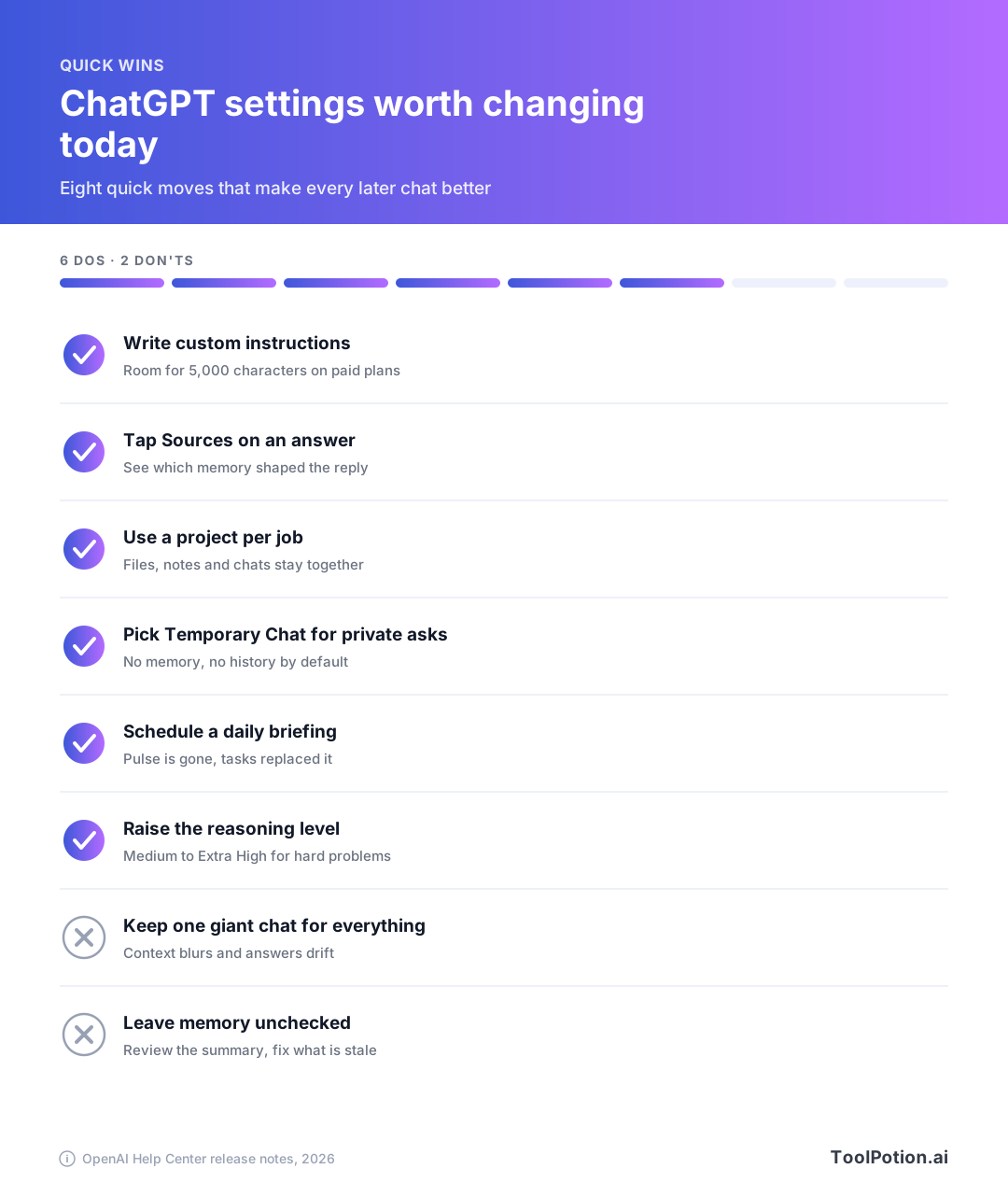
The graphic above is the short version. Eight settings, six worth turning on and two habits worth dropping. The rest of the article is the long version, with the details that decide whether each one works for you.
ChatGPT settings to change first: instructions, memory and privacy
Almost every complaint about ChatGPT being generic traces back to what it knows about you. These six features control that, and they cost nothing on any plan.
1. Write custom instructions (and use the 5,000 characters)
Custom instructions are standing orders that apply to every new chat. Paid plans now get up to 5,000 characters, up from 1,500 (OpenAI release notes). Most people write two lines. Use the room. Describe your job, how you like answers shaped, and what to avoid.
I'm a marketing manager at a 40-person software company. Write in plain, direct English, no hype words. Lead with the answer, then the reasoning. Use short paragraphs. If a request is ambiguous, ask one clarifying question before starting. When I paste numbers, check the arithmetic and say so if something looks off.2. Tap Sources to see why ChatGPT answered that way
Memory sources, available on all consumer plans, add a Sources icon under a response. It lists the saved memories, past chats and custom instructions that shaped the answer. Plus and Pro users may also see library files and referenced Gmail messages. You can correct an item, delete it or mark it not relevant. OpenAI warns that sources may not show every factor, so treat the list as a hint, not a full audit.
3. Edit the memory summary in plain English, or switch memory off
Memory updates itself now. ChatGPT decides which details matter and keeps them current, which cuts stale and contradictory entries. If you prefer the older behavior, go to Settings, then Memory, then Saved memories to revert. On the memory summary page you can type a correction into the box at the bottom, highlight a passage to fix it, or pick "Delete and turn off memory" from the three-dot menu. That last option doesn't delete your past chats.
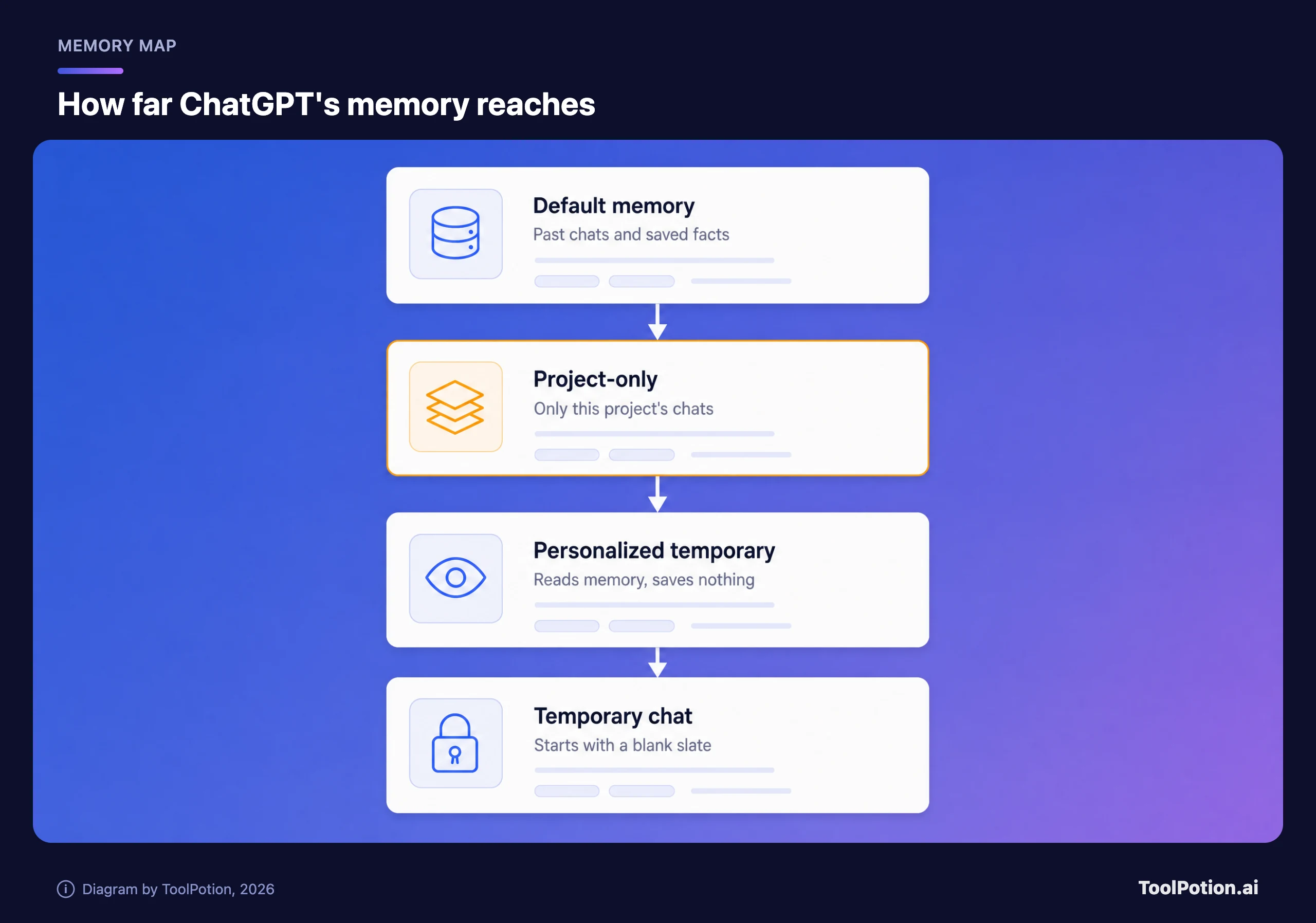
The diagram ranks the four memory states from widest to narrowest. Project-only memory is the one most people don't know exists, and it's covered below. First, the state at the bottom of the stack.
4. Use Temporary Chat for anything you don't want remembered
A temporary chat stays out of your history and isn't used to improve OpenAI's models while it remains temporary (OpenAI help center). By default it's unpersonalized: no memory, no custom instructions, no plugins. A newer option lets you start a personalized temporary chat that reads your memory and instructions but still saves nothing new. You pick this when the chat starts and can't change it later. If a throwaway chat turns out to be useful, saving it converts it to a regular chat, and your normal memory and model-improvement settings then apply.
5. Open the Privacy Center and check the data setting
The Privacy Center pulls chat privacy, memory, personalization, data use, connected apps and account security into one page for Free, Go, Plus and Pro users. On the web, open your account menu, choose Help, then Privacy Center. The pricing page lists "opt-out available" for training on your content on every individual plan, so it's worth ten seconds to confirm yours.
6. Turn on Lockdown Mode if you handle sensitive material
Lockdown Mode is an opt-in security setting, now open to every logged-in user. It limits live web browsing, deep research, agent features and file downloads to reduce the risk of data theft through prompt injection. It lives under Settings, then Security. The same area now has a security history that lists recent sign-ins and changes to multi-factor authentication and passkeys. Most people don't need Lockdown Mode, but anyone pasting contracts or customer data into ChatGPT should know it's there.
Projects, search and Library keep your context in one place
7. Give every ongoing job its own project
Projects keep related chats, files and instructions together, and they're on every plan, though file counts depend on the plan (OpenAI help center). Project instructions apply only inside the project and override your global custom instructions. That's the trick: your global instructions can stay general while a project for a client, a thesis or a house renovation carries its own rules.
Project instructions: This project is the Q4 newsletter. Audience: existing customers, non-technical. Tone: warm, brief. Always check drafts against the brand-voice file in the sources. Flag any claim that needs a source.8. Add sources from Slack, Drive and your own chats
You can paste a link to a Slack channel or a Google Drive file or folder straight into a project's sources. You can also save a good ChatGPT answer as a source with the message menu, or paste notes in as text. This turns a project into a living knowledge base instead of a folder you uploaded once and forgot.
9. Switch a project to project-only memory
Project-only memory lets ChatGPT use conversations from the same project for context, but it won't pull memories from outside, and the project's content stays out of your general memory. You can change the setting after you create a project, from Project settings in the three-dot menu. Shared projects are always project-only. One catch from OpenAI's notes: ChatGPT Work isn't available in projects that use project-only memory.
10. Search across chats, projects and files from the sidebar
Sidebar search now covers past chats, projects, images and documents in one place, with filters by content type. It's available on all plans. If you've ever scrolled for ten minutes looking for "that chat where it fixed my spreadsheet formula", this is the fix.
11. Mention files from Library instead of re-uploading them
Library connects Google Drive, Box, Dropbox and SharePoint. Once connected you can add a file to a chat with Add from Library or an @mention, keep a preview open beside the conversation, and ask ChatGPT to compare or summarize files, or work across a whole folder. The Box, Dropbox and SharePoint connections are rolling out on the web for Go, Plus, Pro and business plans, with mobile to follow.
How to pick the right ChatGPT thinking level
12. Choose the reasoning level yourself
OpenAI retired automatic switching from Instant to Thinking for Plus and Pro, and removed the Higher intelligence setting on the web. So the model no longer decides for you. The picker now offers Instant, Medium, High and Extra High, with Pro Standard and Pro Extended on Pro plans. Use Instant for lookups and drafts. Use High or Extra High when the cost of a wrong answer is real: tax questions, code that touches money, a contract clause.
13. Use Think on Free and Go
Free and Go users can now select Think on the web to make ChatGPT reason through a harder question. It's easy to miss because it looks like a small toggle, and a lot of Free users never touch it.
14. Ask for a calculator, comparison or diagram
GPT-6 brought what OpenAI calls Intelligent UI. ChatGPT can answer with side-by-side comparisons, diagrams, or small tools you use inside the conversation, such as calculators, bill splitters and games. It picks the format on its own and still writes plain text when that's better. You can steer it: "Build me a calculator for splitting this rent by room size" works better than describing the math. Plus, Pro, Business and Enterprise use GPT-6 Sol; Free and Go use GPT-6 Luna. The Pro reasoning option uses GPT-6 Astra and doesn't support Intelligent UI.
15. Run deep research with an edited plan
Deep research reads many sources and returns a documented report, as opposed to Search, which returns a quick summary with links (OpenAI help center). Before it starts, ChatGPT proposes a research plan that you can edit. You can limit it to specific websites, add your own files, and interrupt mid-run to change direction. Start it by typing /Deepresearch or from the tools menu. The older "legacy" mode was removed earlier this year. For a comparison with the standalone tool, see our listing for OpenAI's Deep Research.
Research how small clinics in the US handle AI scribe consent. Use only official regulator pages, major medical associations and peer-reviewed sources. Report: a one-paragraph answer, a table of approaches, then open questions. Flag any claim you could only find in one source.Canvas deserves a note here. OpenAI says canvas is no longer available in GPT-5.5 Instant or GPT-5.5 Thinking, with writing and code blocks handled inside the chat response instead. Paid users can still reach canvas through legacy models for a limited time, so don't build a habit around it.
Hand off whole jobs: Work, scheduled tasks, Sites and plugins
This is where ChatGPT has changed most. It used to be a place you asked questions. It's now also a place where you hand over a task and come back to the result. The diagram shows how the modes divide the labor.
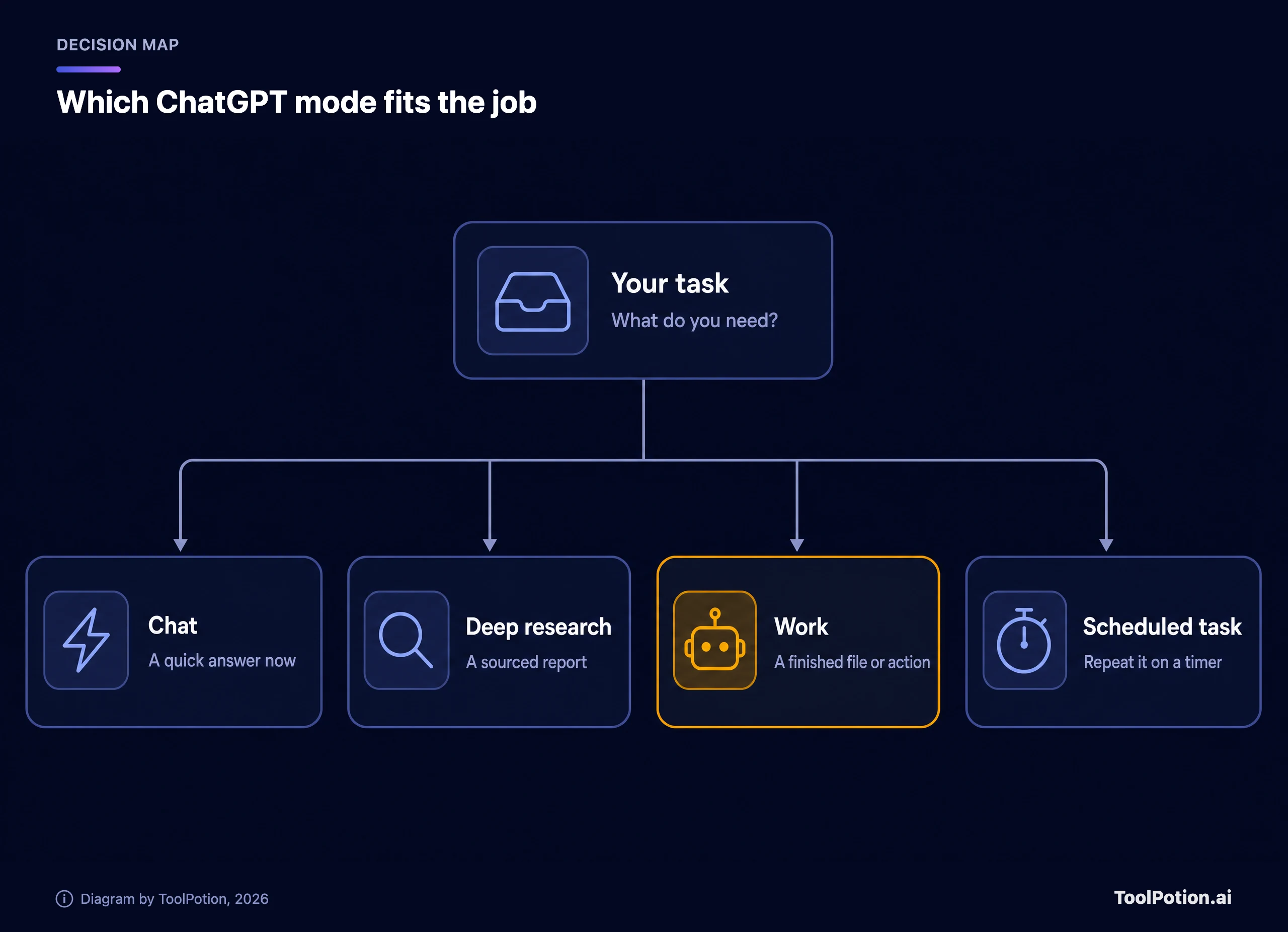
Chat answers now. Deep research produces a sourced report. Work produces a finished file or completes an action. A scheduled task runs something again later. Choosing the wrong one is the most common waste of time, and the tool below does the sorting for you.
16. Use ChatGPT Work for tasks that end in a file
OpenAI describes Work as an agent for longer, more involved tasks. It can research, work across connected apps and files, and produce documents, spreadsheets, presentations and reports, while you follow progress, answer questions and approve important actions. OpenAI's notes don't say whether Work replaces the older agent mode, so treat them as separate names for now. The pricing page lists Work as limited on Free and Go (desktop app only) and fully available on Plus and Pro across desktop, web and mobile. Work on the web can also complete tasks on sites that need a login, for Plus and Pro, and it asks before consequential steps like a payment.
Take the three attached sales exports, combine them into one sheet, flag any customer who appears in more than one region, and build a one-slide summary of the top ten accounts. Ask me before deleting anything.17. Set up scheduled tasks, including a daily briefing
Scheduled tasks send reminders, repeat chores and monitor things for you. They have their own Scheduled page in the sidebar where you can pause, edit or delete them. Pulse, the proactive update feature, was sunset and folded into this, so a daily briefing is now a task you ask for. Active task limits are 3 on Free and Go, 5 on Plus and 15 on Pro, and hourly schedules or exact delivery times need a paid plan (OpenAI help center). One gotcha: a task created inside a project can't read that project's files.
Every weekday morning, search the web for news about our three main competitors and check my calendar. Send me a five-line briefing, and only notify me if something changed since yesterday.18. Trigger tasks from Gmail, Slack or GitHub
Plus and Pro users can create tasks that fire when something happens: a new Gmail message, a Slack channel post or a GitHub pull request change. Free and Go accounts can't create these. Actions that need approval pause until you review them. You can also share a task so a colleague can schedule their own copy, though the shared link includes the instructions in readable form, so keep passwords and sensitive details out of them.
19. Learn plugins before custom GPTs disappear
OpenAI replaced the App Directory with a Plugin Directory. Plugins can bundle skills, apps and app templates for a specific workflow. OpenAI also says it plans to retire custom GPTs and offer a migration path to plugins. Existing GPTs keep working until the retirement date that applies to you, so if one runs part of your week, note who made it and who needs access now. You can also connect more than one account to a plugin, so personal and work Gmail or Calendar can sit in the same conversation. Search for the tools you need in the directory, and compare any assistants you're weighing in our ChatGPT alternatives guide.
20. Turn work into a Site
ChatGPT Sites builds an interactive website or lightweight app from inside ChatGPT: a dashboard, a project tracker, a launch calendar, a report. You preview privately, then publish and share by link. It's in public beta, available to Plus and Pro, and not on Free or Go. Public publishing isn't offered in the EEA, Switzerland or the UK at launch. Sites can also be shared with named people outside your workspace without making them public.
Voice, audio, images and study tools worth trying
21. Talk to ChatGPT with plugins switched on
Voice now runs on GPT-Live, which listens and speaks at the same time, so interruptions feel more natural. Live supports plugins on web, iOS and Android, so you can ask it about your calendar while you walk. Daily limits differ by plan: Go gets up to 3 hours on a smaller model, Plus up to 3 hours, Pro at $100 up to 15 hours, and Pro at $200 is unlimited.
22. Upload audio and get notes back
Attach a supported audio file and ChatGPT will transcribe it, summarize it or answer questions about it. A meeting recording becomes structured notes or a follow-up email draft. It needs a paid plan, and OpenAI cautions that transcripts can contain errors and quality varies by language, so check names and numbers before you send anything.
23. Use image templates, sketches and thinking
ChatGPT Images 2.5 added templates (Images, then Templates), a sketch input on mobile where you draw and then describe, and a way to share the prompt behind an image. Images with thinking, which plans and refines the picture before drawing it, is on paid plans when you choose a Thinking or Pro model. For text-heavy images, give the exact wording in quotes.
24. Make flashcards and quizzes from your own notes
Upload notes or name a topic and ask for flashcards. Tap to flip, mark what you know, shuffle and revisit. Cards save to your library. Interactive quizzes work the same way, and both are available to all consumer plans. Study mode is listed on every plan on the pricing page.
25. Use ChatGPT inside Word, Excel and PowerPoint
ChatGPT for Word joined the Excel and PowerPoint add-in. From a sidebar you can draft from notes, summarize a document, revise a selection and adjust headings. It's available on every plan, including Free, with your plan's token limits. If you scan paper documents, the iOS camera now has a Scan option that combines several pages into one PDF before upload.
The browser is the other gap. Atlas, OpenAI's standalone browser, was scheduled to stop working earlier this year as OpenAI moved those abilities into ChatGPT and Codex. If you relied on it, the ChatGPT browser extension now supports Edge, Brave, Opera and Vivaldi as well, and the desktop app's built-in browser handles deeper jobs. Our old ChatGPT Atlas listing is a good reminder to check any tool's status before you build a habit around it. Developers will also find Codex in ChatGPT in the same desktop app.
Prompts that work better in 2026 ChatGPT
New features don't fix a vague request. A few habits carry across every model update, and they matter more as ChatGPT takes on longer tasks.
- Say who the answer is for and what it will be used for. "A summary for my manager, who has two minutes" beats "summarize this".
- Paste the real material. Models are good at working from text you give them and weaker at recalling facts from memory.
- Define what finished looks like: length, format, the columns in the table.
- Ask what's missing before it starts. "What do you need from me to do this well?" costs one extra turn and saves three.
I need a one-page brief for a client meeting tomorrow. Audience: the client's finance director. Use the attached contract and last quarter's report. Format: five bullets and one risk table. Before you write anything, tell me what information you're missing.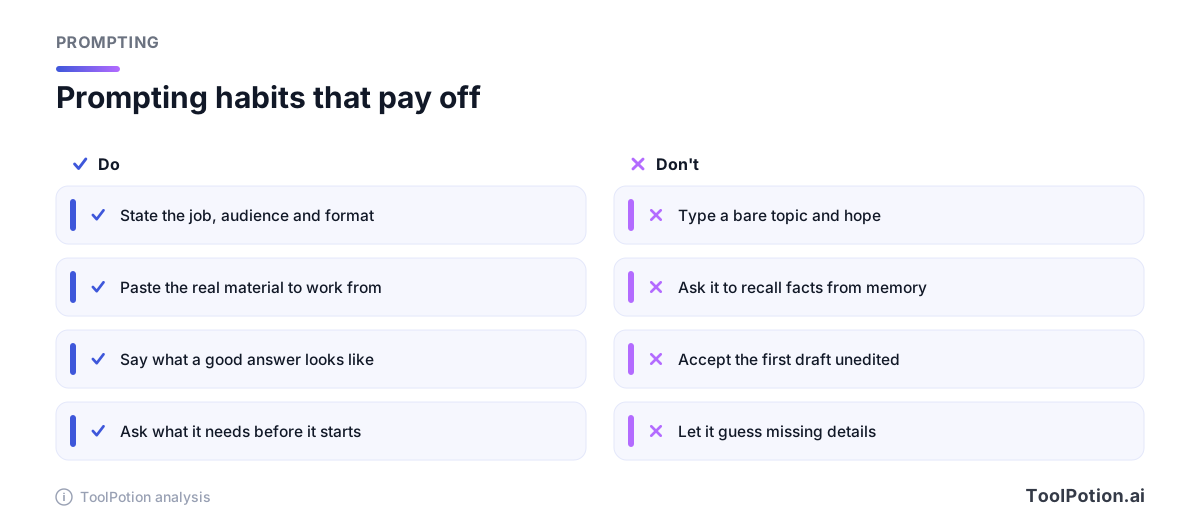
The same four habits apply to Work and scheduled tasks, where a vague instruction gets repeated every day. For deeper reading, see our practical prompt engineering guide, the playbook on prompt patterns that survive model updates, the free Prompt Engineering Guide, and OpenAI Academy. The Top 50 prompt engineering tools board lists tools that manage and test prompts.
Which ChatGPT plan do you need?
Free covers more than most people expect: unlimited text chats subject to abuse guardrails, projects, memory (limited), voice and limited deep research. Go is the budget step up. In the US it launched at $8 a month, though OpenAI says Go pricing is localized in some markets (OpenAI). Plus is $20 a month. Pro now has three levels: $100, $200 and a new $500 plan with the highest included usage (OpenAI release notes).
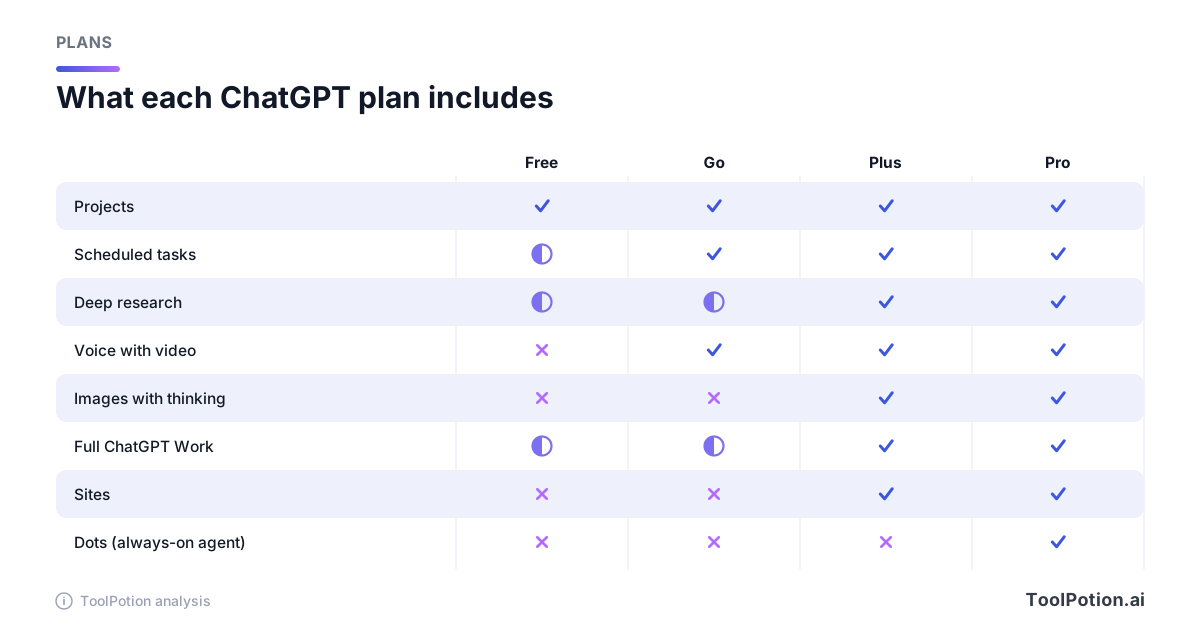
The matrix is a summary, not a contract. Limits shift often, and OpenAI's own pricing page marks many rows as limited, expanded or unlimited without giving numbers. On scheduled tasks the pages disagree. The pricing page's comparison grid marks scheduled tasks "No" for Free. The scheduled tasks help center and the release notes say Free users can have up to three active tasks, one-time or at most daily. We followed the help center and marked Free as partial.
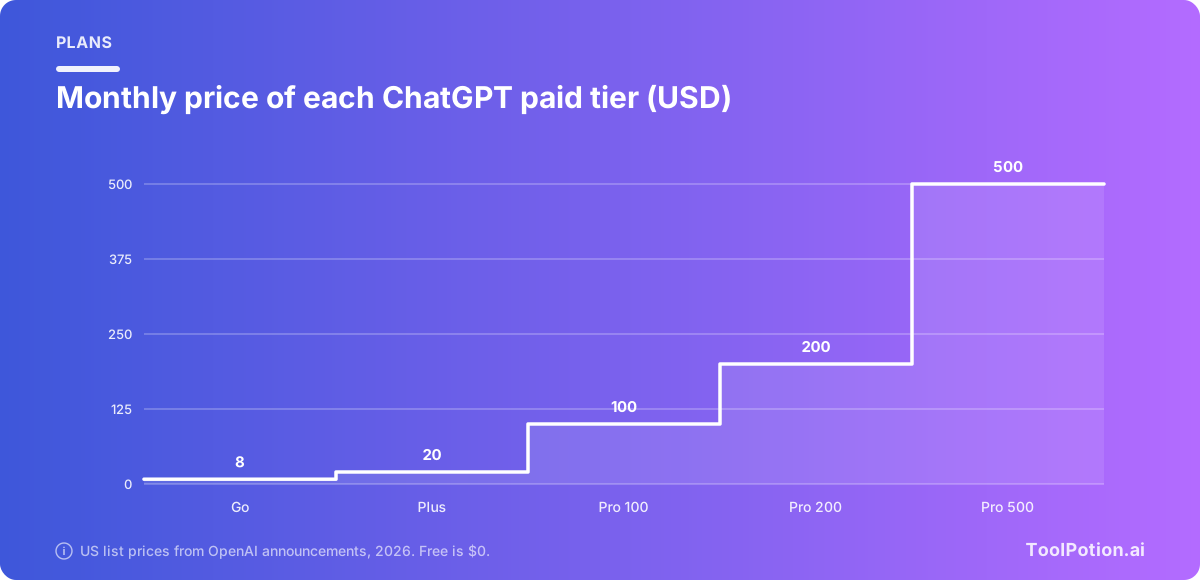
The jump from Plus to the first Pro tier is five times the price. For most people the question is whether Plus is enough, and the answer is yes if you mainly chat, research and run a few tasks. The extra Pro tiers are about heavy use of Work and Codex, plus things like Dots, the always-on agents that OpenAI is rolling out to Pro users outside the EEA, Switzerland and the UK.
| If you mostly... | Start with | Why |
|---|---|---|
| Ask questions and draft text | Free | Unlimited text chats, memory, projects and Think |
| Want more uploads, images and voice on a budget | Go | More messages, larger uploads and longer memory than Free. Shows ads in some regions |
| Run research, tasks and Work regularly | Plus | Full Work, Sites, webhooks, Images with thinking, expanded deep research |
| Code or run agents all day | Pro | Higher Codex and Work allowances, Dots, Pro reasoning |
Ads are worth knowing about. OpenAI's notes say ads are rolling out on Free and Go in some countries, while Plus, Pro and business plans are ad-free.
Where these features fall short
A few honest caveats. Rollouts are staggered, so a feature in the notes may not be on your account yet, and the notes themselves say availability depends on plan, region, client version and workspace settings. Work and Dots are agents, which means they can make mistakes while acting, and OpenAI's own pages say they ask for confirmation before consequential actions. Keep that approval step switched on.
Memory is useful and also a thing to audit. Check the summary every so often, and use Temporary Chat for health, legal or financial questions you don't want attached to your profile. Transcripts, summaries and research reports can all be wrong in small ways. And if you're comparing ChatGPT with Claude or Perplexity, look at our AI writing assistants board rather than assuming one tool wins every job.
Last, a time-saver. Run through this checklist once, then repeat it whenever OpenAI ships a big update.
A score under five means you're mostly on defaults, and the two-point items are the quick fixes. Anything above nine means you're already using more of the product than most people do.
Frequently asked questions
What are the best ChatGPT tips for beginners?
Write custom instructions, put each ongoing job in a project, and learn the model picker. Those three changes improve nearly every answer. After that, try Temporary Chat for private questions and a scheduled task for something you do every week.
How do I stop ChatGPT from remembering things?
Open Settings, then Memory, and turn it off, or choose "Delete and turn off memory" from the memory summary menu to clear what's stored. For a single conversation, use Temporary Chat, which doesn't use or create memories by default. Deleting memories doesn't delete your chat history.
Is ChatGPT Plus still worth $20 a month?
If you use Work, Sites, webhook tasks, Images with thinking or expanded deep research, yes, because those are Plus features. If you mostly ask questions and draft emails, Free or Go may be enough. OpenAI's release notes and its Go launch post both list Plus at $20 a month in the US.
Can ChatGPT run tasks while I'm away?
Yes. Scheduled tasks run on a timer or, on Plus and Pro, when something happens in Gmail, Slack or GitHub. Free and Go accounts get up to three active tasks. Work can also continue a task in the background on the web and mobile.
What replaced ChatGPT agent mode, Pulse and canvas?
OpenAI says proactive updates from Pulse moved into scheduled tasks, and that canvas is no longer available in GPT-5.5 Instant or Thinking, where writing and code blocks in the chat reply replace it. Work is OpenAI's agent for longer tasks, but its notes don't say it replaces agent mode. Paid users can still reach canvas through legacy models for a limited time.
Do custom GPTs still work?
For now, yes. OpenAI says it plans to retire custom GPTs and migrate them to plugins, with timing that varies by plan and workspace. Note which GPTs you rely on and who built them so you can test the migration when it arrives.