ChatGPT's export link dies 24 hours after the email arrives, and the email itself can take up to seven days to show up, according to OpenAI's help page. Miss the window and you request it again. So the first step of any move away from ChatGPT is to ask for the file now, before you've decided where you're going.
The second thing to know is that there are two separate jobs here. One is carrying over what the assistant knows about you: your tone preferences, your job, the projects you keep mentioning. The other is carrying over the conversations themselves. Claude and Google Gemini both have an official path for the first job. Only Gemini has one for the second, and not everywhere.
Request the export first
- In ChatGPT on the web, open your profile menu, then Settings, then Data controls.
- Under Export data, select Export, then Confirm export. The iOS and Android apps have the same Data controls entry, and may bounce you to the web to finish.
- Wait for the email (or an SMS, if your account only has a phone number). Select Download data export and do it while signed in to the same account.
- Open the ZIP and check it holds the chats you expect. OpenAI notes that an export can't bring back chats you already deleted.
Free, Go, Plus, Pro and eligible Edu accounts can do this from settings. Business, Enterprise and Healthcare workspaces can't: you'd ask your workspace owner. If you can't sign in at all, OpenAI's Privacy Portal has a Download my data option. The help page says the ZIP holds your chat history and other relevant account data. It doesn't list the files, so open it before you promise yourself anything about what's inside.
Get your memory out as text
The export file isn't what you paste into a new assistant. For that you need the memory as plain text, and ChatGPT keeps it in two places. Custom instructions live under Settings, then Personalization. They're capped at 1,500 characters on Free and Go and 5,000 on Plus, Pro and the business plans, so copying them out by hand takes a minute. Memory sits in the same Personalization screen, but OpenAI says the memory summary is a high-level view that doesn't necessarily include every detail or source.
That's why both new homes ship a prompt for this. You paste it into a ChatGPT chat and ask it to list everything it has stored about you. Claude's version tells the old assistant to put every entry in one code block, keep your wording verbatim and say whether anything is left over. Gemini generates its own.
Bringing it into Claude
Anthropic documents this directly, on its memory import and export page. Imports work on the web and in Claude Desktop, on every plan from Free to Enterprise.
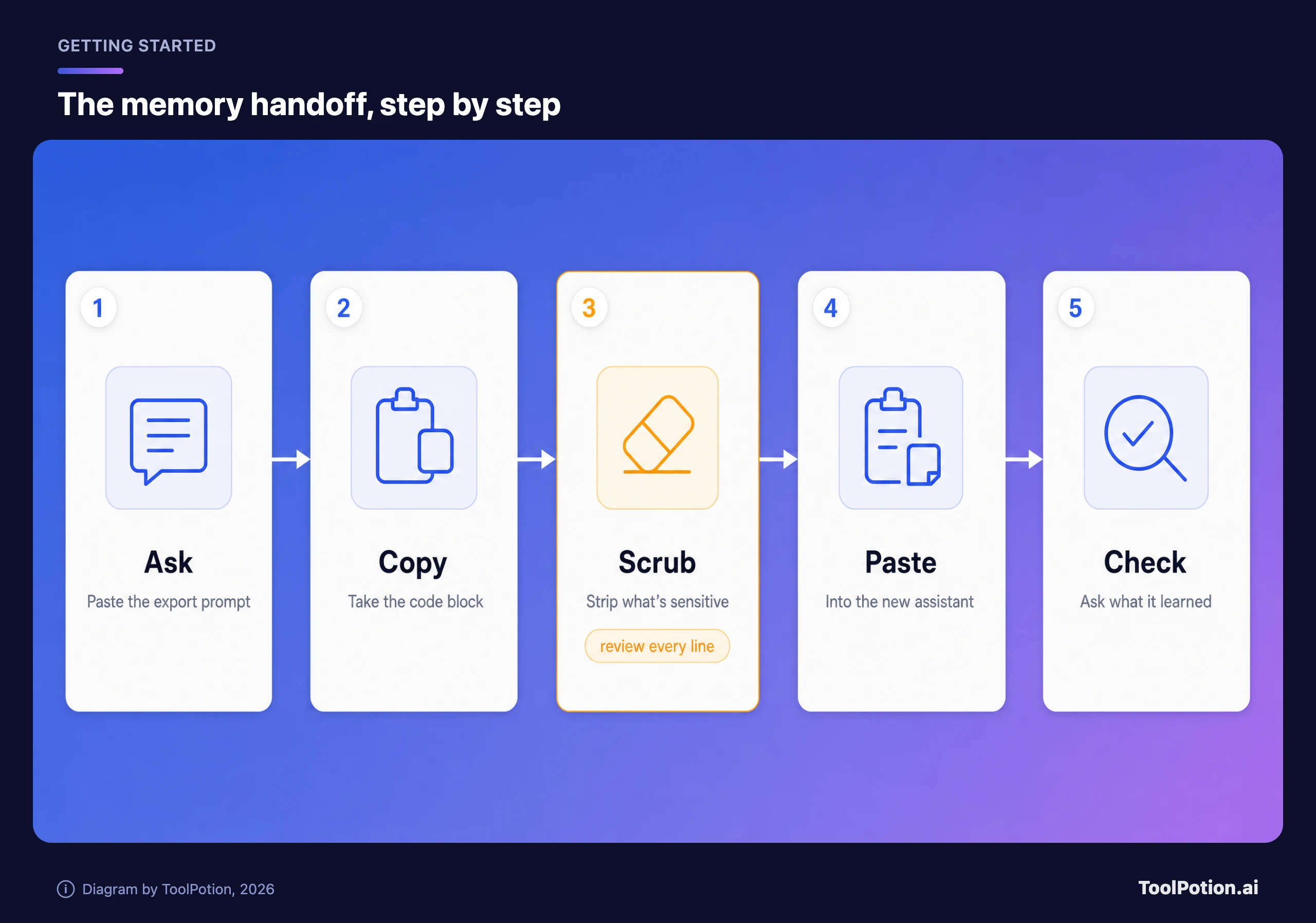
- Go to Settings, then Your Claude, and select Start import. (Older layouts put it under Settings, then Memory.)
- Copy the prompt Claude shows, paste it into ChatGPT and copy the answer.
- Paste that answer into the text box in Claude and click Add to memory.
- Click See what Claude learned about you. It starts a chat asking exactly that.
Two caveats from the same page. Anthropic calls memory imports experimental and says Claude may not always incorporate them. And because Claude's memory is built around work, it may not keep personal details that have nothing to do with work. If something matters, tell Claude in chat or use the Tell Claude what to change or remove box. We'd treat the import as a first draft and spend ten minutes correcting it.
For files and standing instructions, use a Project. Anthropic's Projects page says project instructions apply to every chat in the project, and uploaded knowledge is shared across them. That's the closest match to a custom GPT's instructions and files, assembled by hand.
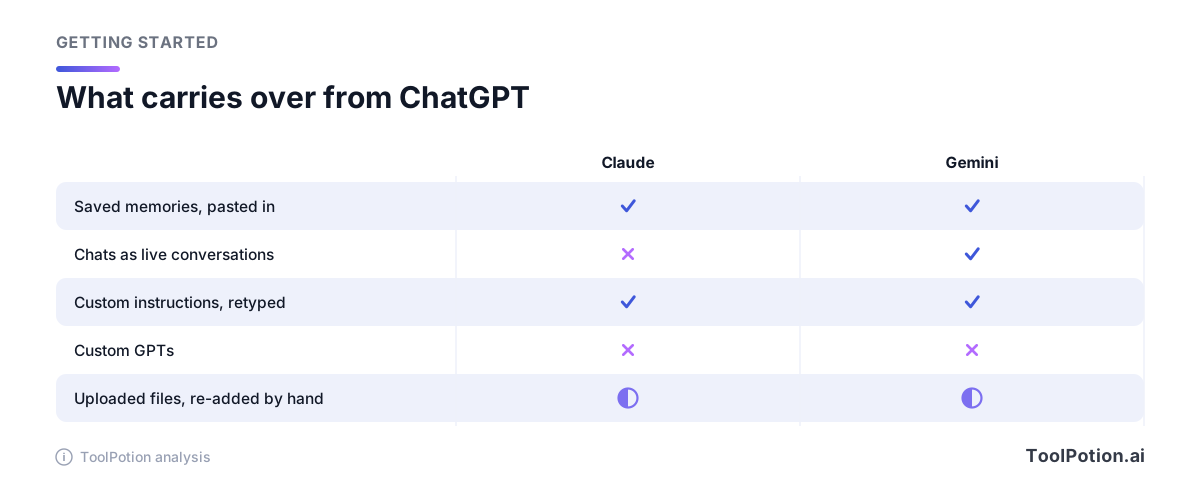
Chats are where Claude stops. Neither Anthropic's memory page nor its export page describes a way to load a ChatGPT export, and we found no other route in its help pages. If you want the old conversations searchable there, you're pasting the ones that matter into a Project as files.
Bringing it into Gemini
Google's import page covers both jobs. For memory: at gemini.google.com, open Settings & help, choose Import memory to Gemini, copy the prompt, run it in ChatGPT, paste the reply back and click Add memory. Gemini then opens a new chat thread and folds the details in.
For chats, the same screen has an Import chats section with an Add button. It takes a .zip of up to 5 GB, up to five files a day, and Google says processing can take up to a day. Upload the ZIP that ChatGPT emailed you. Re-uploading a ZIP adds new conversations and overwrites previously imported ones, and imported chats carry their own icon so you can delete them one at a time or by import. It launched earlier this year as a switching tool for people leaving ChatGPT, Claude and other apps. Google's page walks through the export steps for both ChatGPT and Claude.
Now the fine print. Google says the import feature, memory and chats alike, is currently not available in the EEA, Switzerland or the UK. It needs a personal Google account and an adult, and it isn't available in Gemini in Google Messages, Gemini in Chrome or Gemini on Android XR. And the data-handling section is blunt: "Your imported and continued chats are saved in your Activity. This data is used to improve our services (including training generative AI models), and to protect Google, our users and the public." You can manage or delete that activity, but decide before you upload, not after.
Standing instructions go in a different place: Settings & help, then Personal Intelligence, then Instructions for Gemini, then Add. Gems can hold instructions plus files under Knowledge, but Google's Gems page says Gems will go away on personal accounts and transition automatically to skills later this year, so we wouldn't build anything elaborate there right now.
What doesn't come along
Custom GPTs are the clearest loss, and nothing exports them. OpenAI's own help page says: "We're planning to retire custom GPTs and help creators move their workflows to plugins." It also says personal accounts can no longer create new GPTs. So save the instructions whatever you decide: open the GPT's configuration, copy the Instructions text, download any knowledge files, and rebuild it as a Claude Project or a Gemini Gem (or a skill, if Google's change has landed by then).
Voice settings, connected apps and one-off image generations don't have a documented route either. We found nothing in the help pages we read that moves them, so assume you'll reconnect Gmail or Drive by hand in the new app. If you use ChatGPT's memory with connected apps, note that OpenAI lists content from them as a source of what it remembers, so your memory dump can include things you never typed.
Old chats as live conversations are the other gap. On Claude they stay in your ZIP, which works fine as an archive. We covered how to keep and search one in a piece about apps that shut down, and the same advice applies here.
Read it before you paste it
A memory dump is a profile of you written by a system that was paying attention for a year or two. Before it goes anywhere, read every line. Cut the entries about your health, your kids' names and schools, your address, anything about an employer's unreleased work, account numbers and the odd password someone once pasted into a chat. Our piece on how assistant memory works explains why these things land in there in the first place, and our privacy framework helps you decide what each assistant should see.
Claude helps a little: Anthropic says it never saves government ID numbers, financial account numbers, criminal history or immigration status, and it leaves out sensitive topics like health and religion unless you switch a setting on. The pages we read for Gemini list no equivalent exclusions, so the scrubbing is on you. Then pick the destination with the privacy trade in mind. Our three-way comparison weighs the assistants on the work itself, and ChatGPT alternatives covers the rest of the field.
Last, keep the ChatGPT account alive until you've asked the new assistant what it knows about you and corrected the answer. Delete it first and you have no complete copy left to check against.
Frequently asked questions
How long does the ChatGPT export take?
OpenAI says up to seven days, and the download link expires 24 hours after you receive it. Check spam and promotions folders before you request a second one, because a pending request blocks a new one.
Can I import my ChatGPT chats into Claude?
We found no way in Anthropic's help pages. Claude's documented import flow takes pasted memory text only. Your chats stay in the ZIP, or you add the important ones to a Project as files.
Does Gemini's chat import work in Europe?
No. Google's help page lists the EEA, Switzerland and the UK as unsupported for now, and the note covers the import feature as a whole, so neither memory nor chat import is offered there.
Will deleting my ChatGPT chats delete its memory?
Not necessarily. OpenAI says saved memories are stored separately from chat history, so you have to delete them in Memory settings as well.