Description
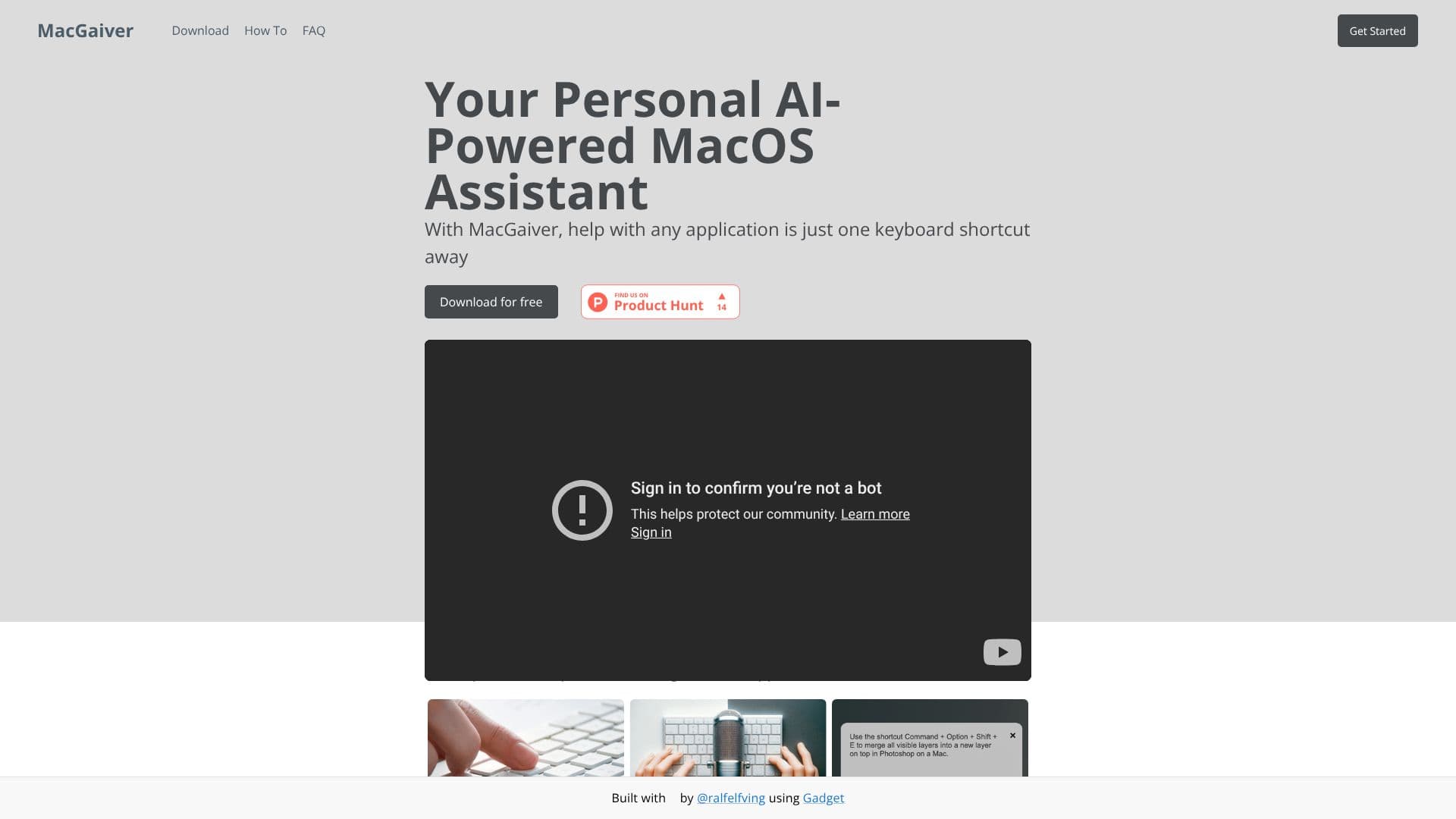
MacGaiver transforms your macOS experience by putting an AI-powered assistant directly at your fingertips. Designed to offer help without interrupting your workflow, MacGaiver is accessible via a simple keyboard shortcut from any application. This means you can get assistance with software, tasks, or information without ever needing to switch windows or applications.
Read More
Getting started with MacGaiver is straightforward. Once activated, you can either speak or type your question. The assistant then leverages OpenAI's Vision API, specifically GPT-V, to understand your query in the context of your current screen. MacGaiver captures a screenshot of the active window and records your question, sending both to the API for processing.
Within seconds, MacGaiver returns an answer that is presented directly within the context of the application you are using. This contextual relevance is a key benefit, ensuring that the information provided is tailored to your immediate needs. The responses can be delivered in audio format, further enhancing the hands-free experience. This innovative approach is built with a focus on user convenience and efficiency.
The technology behind MacGaiver is powered by OpenAI's advanced GPT-V model, ensuring intelligent and accurate responses. The application is developed using Gadget, highlighting a modern approach to building AI-driven tools. MacGaiver is ideal for professionals, students, and anyone who uses macOS extensively and seeks to streamline their productivity by having immediate, context-aware AI assistance available at all times.
- CategoryAI Personal Assistants
- Pricing ModelFree
- DeploymentDesktop app
- PlatformsmacOS
MacGaiver MacOS Assistant's Core Features
AI-powered assistance for macOS applications
Keyboard shortcut activation
Voice and text input for questions
Contextual answers within the active application
Powered by OpenAI GPT-V
Utilizes OpenAI Vision API for screenshot analysis
Audio responses available
Seamless integration into user workflow
Developed using Gadget
How to use MacGaiver MacOS Assistant?
Activate: Press the designated keyboard shortcut to bring up MacGaiver.
Ask: Speak or type your question into the prompt.
Receive: MacGaiver analyzes the active window and your query.
Get Answer: Receive a contextual answer, potentially in audio format, directly within your app.
MacGaiver MacOS Assistant's Use Cases
- Contextual App Help
- Workflow Enhancement
- Quick Information Retrieval
- Learning New Software
- Productivity Boost