Description
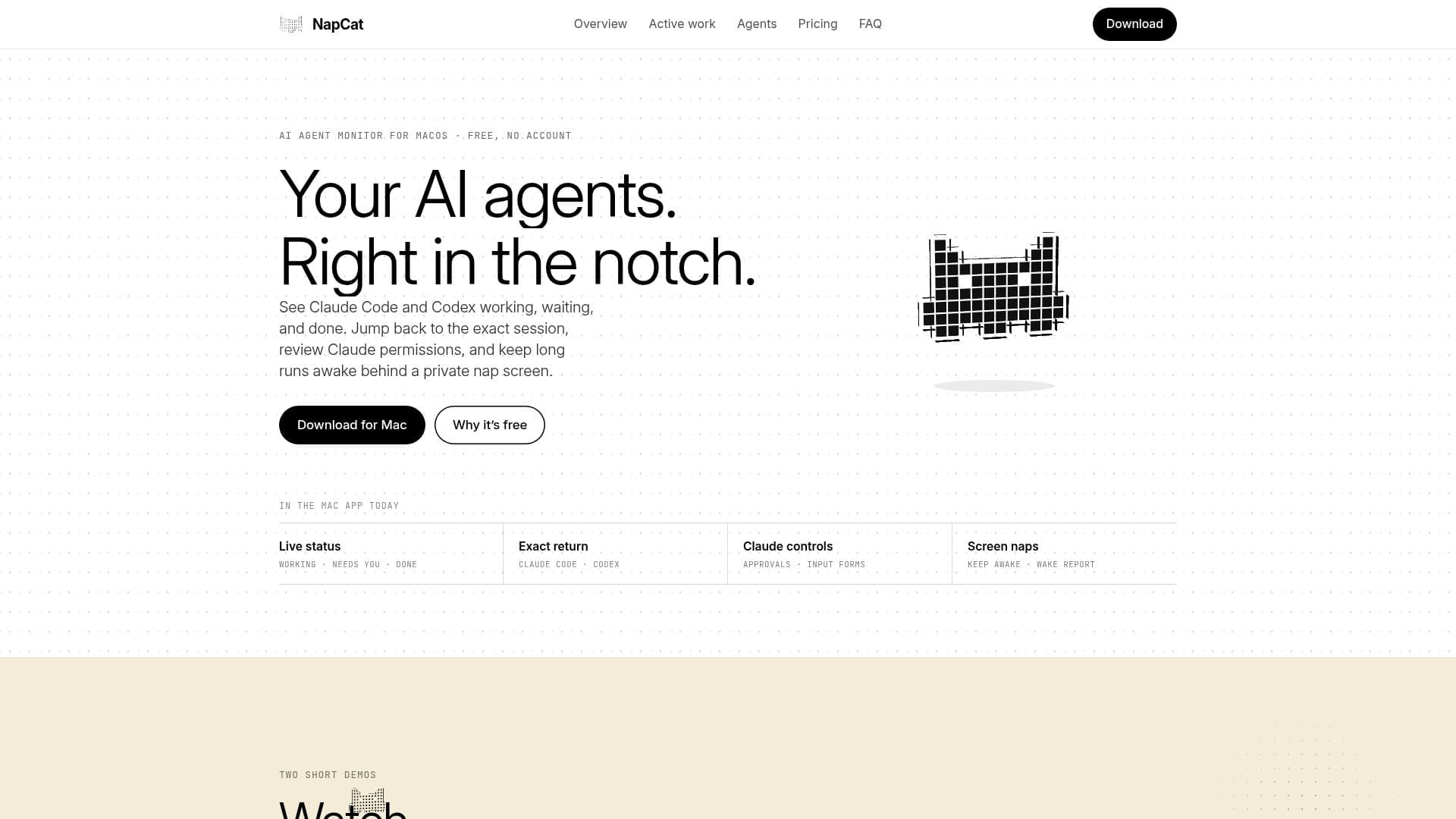
NapCat is a dedicated macOS application that integrates seamlessly with the MacBook notch, offering a unique way to monitor AI coding agents and enhance productivity. Designed with a local-first approach, the app ensures that all monitoring and activity data remains on your Mac, prioritizing user privacy and security. It provides real-time visibility into the status of AI coding sessions, specifically for Claude Code and Codex, displaying whether they are working, waiting for input, or completed.
Read More
The application extends beyond AI agent monitoring, incorporating a suite of useful features. Users can access system-wide Now Playing controls with artwork, manage configurable launchers for Calendar, Music, Notes, and Shortcuts, and utilize a persistent focus timer. NapCat also includes a multi-display screen nap function that keeps your Mac awake while tasks run in the background, preventing display sleep, system sleep, and lock timers. This ensures long-running builds, agents, and downloads continue uninterrupted.
For AI coding agents, NapCat offers rich session context for Claude Code, including real file edit diffs, MCP elicitation forms, and exact lifecycle signals. It also monitors Codex CLI and Codex Desktop threads, allowing users to jump back to the exact session with a click. The app supports a wide range of other popular local agent CLIs at the process level and provides a local Live Activity API for custom scripts and unsupported agents to publish status cards.
Customization is a core aspect of NapCat, enabling users to tailor the notch experience. Island Studio allows control over corner geometry, density, accent, and module ordering. Users can choose between click or hover activation, hide or reorder modules, and export settings profiles. The app also features quiet hours to silence sounds and notifications while updates continue, and a private 53-week AI activity map tracks agent time, sessions, prompts, and finished work, storing up to two years of history locally.
NapCat is completely free, requires no account or license key, and ensures that all agent monitoring remains on your Mac. Optional product analytics are off by default and never collect sensitive data like prompts or project names. It supports Apple Silicon Macs running macOS 13 or later and can even create a floating black island on Macs without a physical notch, making its features accessible to a broader range of users.
- CategoryAI Coding Assistants
- Pricing ModelFree
- DeploymentDesktop app
- PlatformsmacOS
NapCat's Core Features
AI Agent Monitoring for MacBook Notch
Real-time Claude Code Session Status
Codex CLI and Desktop Thread Monitoring
Local-first Data Privacy and Security
Multi-display Screen Nap with Keep-awake
System-wide Now Playing Controls
Configurable Launchers for Apps and Shortcuts
Persistent Focus Timer
Private 53-week AI Activity Map
Customizable Notch Island Appearance
Quiet Hours for Notifications
Support for Custom Scripts via Live Activity API
Free to Use with No Account Required
File Edit Diffs for Claude Code
Session Pinning, Hiding, and Sorting
How to use NapCat?
Download NapCat: Get the NapCat 1.21.0 DMG for Apple Silicon on macOS 13+ from the official website.
Install the Application: Open the downloaded DMG file and drag the NapCat icon into your Applications folder.
Launch NapCat: Open the app from your Applications folder; macOS may request Accessibility permission for session return.
Explore Features: NapCat runs in the menu bar (no Dock icon); a full-screen tour starts on first launch.
Monitor Agents: See Claude Code and Codex sessions working, waiting, or done directly in your MacBook notch.
Interact with Sessions: Click a session card in the notch to jump back to the exact terminal tab.
Customize Settings: Use Island Studio to adjust the notch's appearance, module order, and activation method.
Manage Activity: Review your private AI activity map and configure quiet hours or notification preferences.
NapCat's Use Cases
- Monitoring AI Coding Sessions
- Maintaining Focus During Work
- Managing Background Tasks
- Quick Access to System Controls
- Reviewing AI Agent Activity
- Responding to Agent Prompts
- Customizing Mac Interface
- Integrating Custom Scripts