
Description
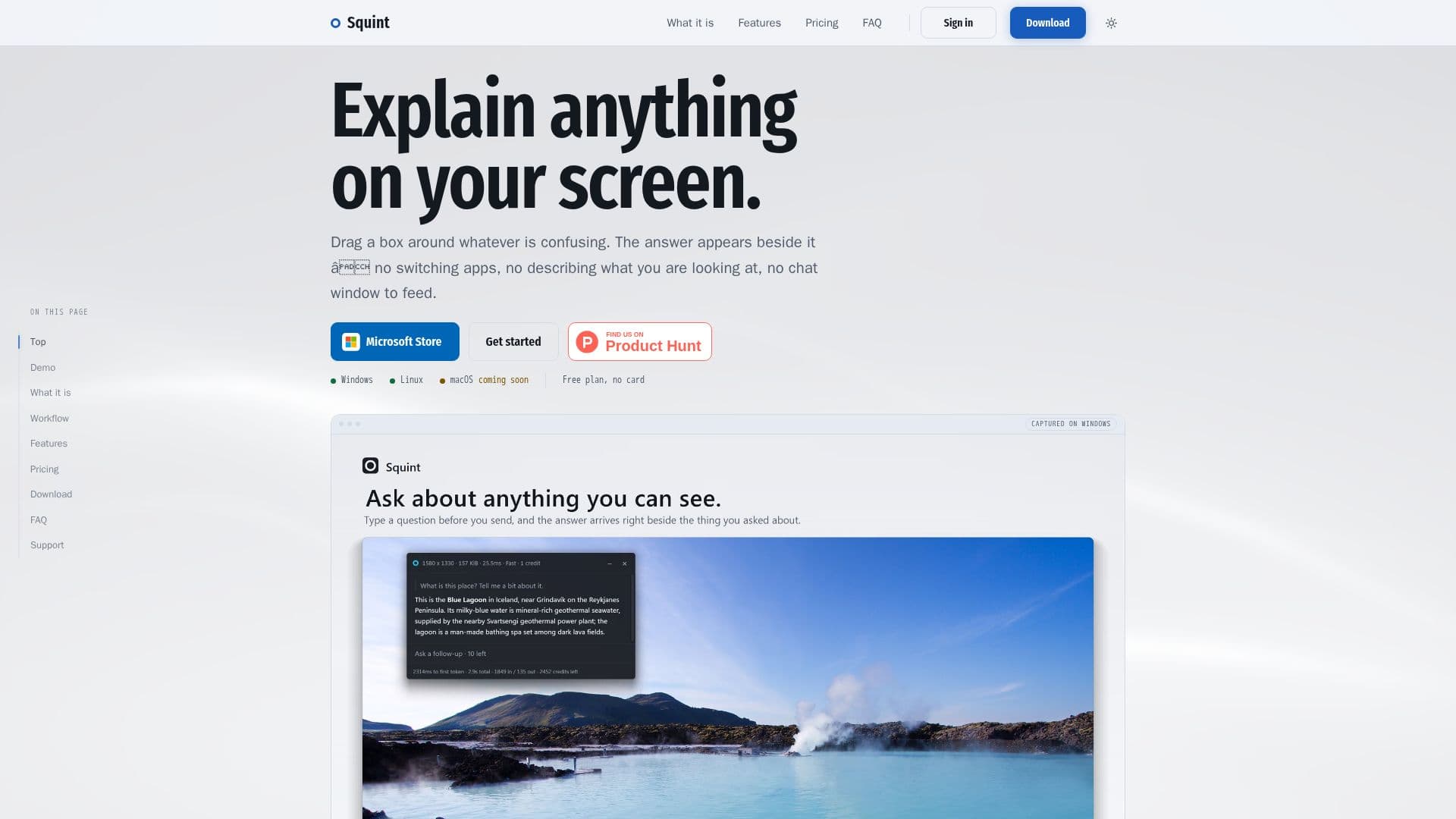
Squint is a desktop application designed to simplify the process of understanding content on your screen. By pressing a hotkey and dragging a box around the area of interest, users can receive an explanation of the selected content without switching apps or describing what they see. This tool is available for Windows and Linux, with macOS support coming soon.
Read More
The application operates by capturing the selected screen region and sending it to OpenAI's API, which processes the content and returns an explanation. Users can choose between two models: 'Fast' for quick responses and 'Best' for more complex content. Squint supports Markdown, mathematical expressions, and code blocks, enhancing the clarity of the explanations.
Squint offers a free plan that allows up to three captures per day or ten per week, with access to all features, including multiple region selection and chat history. The Plus plan, priced at $10 per month, provides 2,500 credits for more extensive use, allowing up to 10 follow-up questions per capture.
The tool is designed for individuals who frequently need to understand complex or unfamiliar content quickly, such as professionals, students, and researchers. Squint's value lies in its ability to streamline the process of obtaining explanations, reducing the cognitive load associated with switching between applications and reorienting to tasks.
Squint ensures user privacy by not recording or polling the screen outside of user-initiated captures. Captured data is only temporarily sent to OpenAI's API and is not used for training purposes. The application is easy to install and configure, with customizable hotkeys and support for multiple monitors and display resolutions.
- CategoryAI Summarizers
- Pricing ModelFreemium
- DeploymentDesktop
- PlatformsWindows, Linux
Squint's Core Features
Hotkey Activation
Streamed Response
Follow-up Questions
Two Models: Fast and Best
Rich Formatting Support
Dynamic Sizing
Multiple Region Selection
Local Chat History
How to use Squint?
Install: Download and install Squint on your device.
Activate: Press 'Win + Shift + Q' to activate the tool.
Capture: Drag a box around the content you want explained.
Receive: Read the streamed explanation beside the capture.
Squint's Use Cases
- Quick Explanations
- Research Assistance
- Technical Support
- Learning Aid
- Content Review