Description
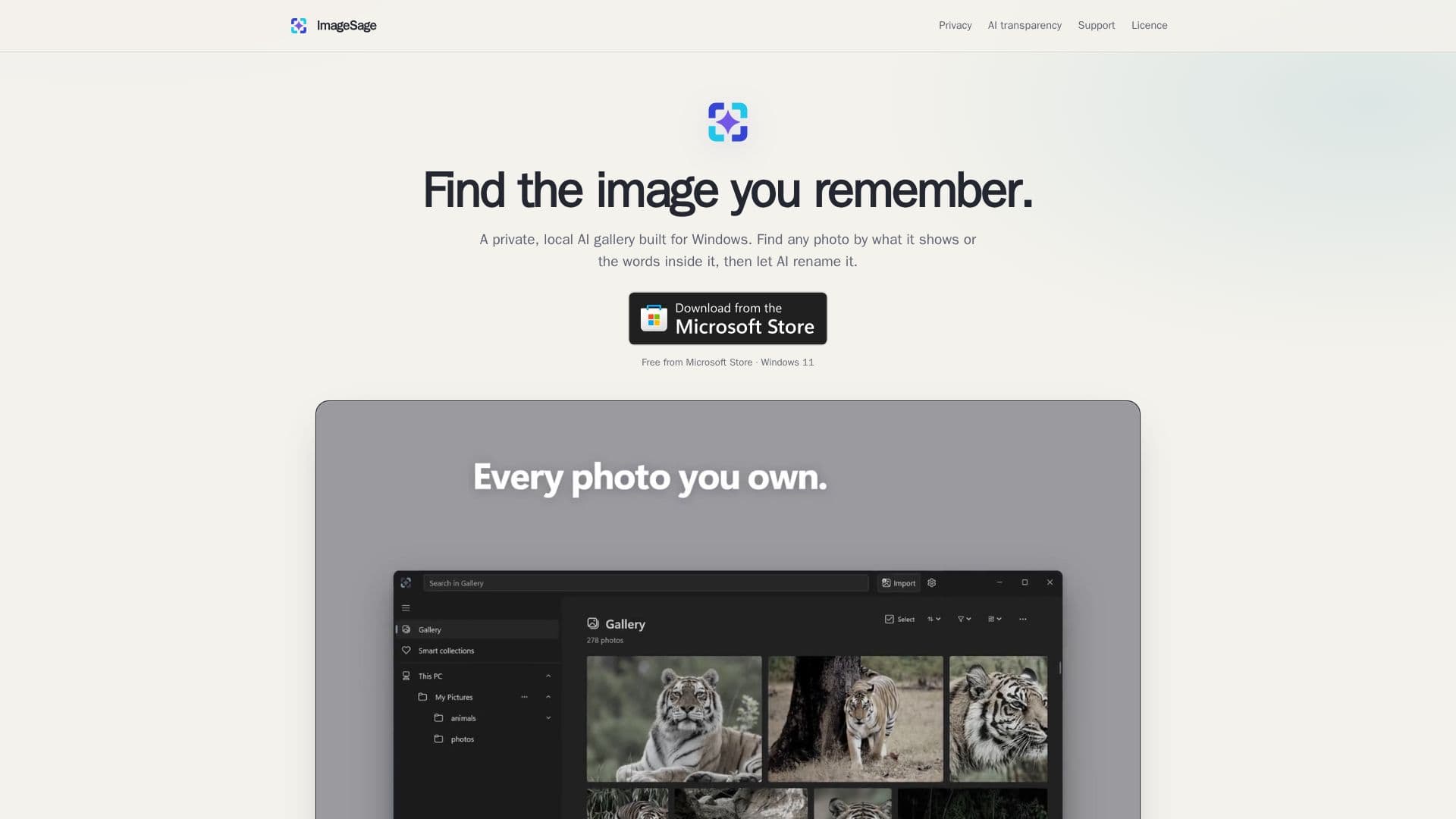
ImageSage is a specialized AI application designed for Windows users who need an efficient way to manage and search their photo collections. This tool allows users to find any photo based on what it shows or the words inside it, thanks to its on-device OCR capabilities. The application is available for free from the Microsoft Store and is compatible with Windows 11.
Read More
The core functionality of ImageSage revolves around its intelligent search capabilities. Users can describe an image, and the app will locate it within their library. This feature is particularly useful for those with extensive photo collections who need to find specific images quickly. Additionally, ImageSage offers a 'Magic Rename' feature, which proposes concise filenames for selected images. Users can review and edit these suggestions before applying them, ensuring that filenames are both meaningful and organized.
ImageSage also supports various file actions directly from the search results. Users can select images to move, copy, rename, or delete without leaving the search interface. Importantly, the app's indexing process does not alter the original files, maintaining the integrity of the user's photo collection.
Privacy is a key aspect of ImageSage's design. The application operates entirely on-device, meaning no account is required, and users retain full control over their data. This makes it an ideal choice for privacy-conscious individuals who prefer not to upload their photos to cloud services.
Overall, ImageSage is a valuable tool for anyone looking to streamline their photo management process while maintaining privacy and control over their data.
- CategoryAI Photo Editors
- Pricing ModelFree
- DeploymentLocal
- PlatformsWindows 11
ImageSage's Core Features
Local AI gallery for Windows
Find photos by content or text
On-device OCR capabilities
Magic Rename for filenames
Direct file actions from search
No account required
Privacy-focused design
Free from Microsoft Store
How to use ImageSage?
Install: Download from Microsoft Store
Launch: Open ImageSage on Windows 11
Search: Describe or enter text to find images
Manage: Use Magic Rename and file actions
ImageSage's Use Cases
- Photo organization
- Content-based search
- Text recognition
- Privacy-focused management
- File action execution