
Description
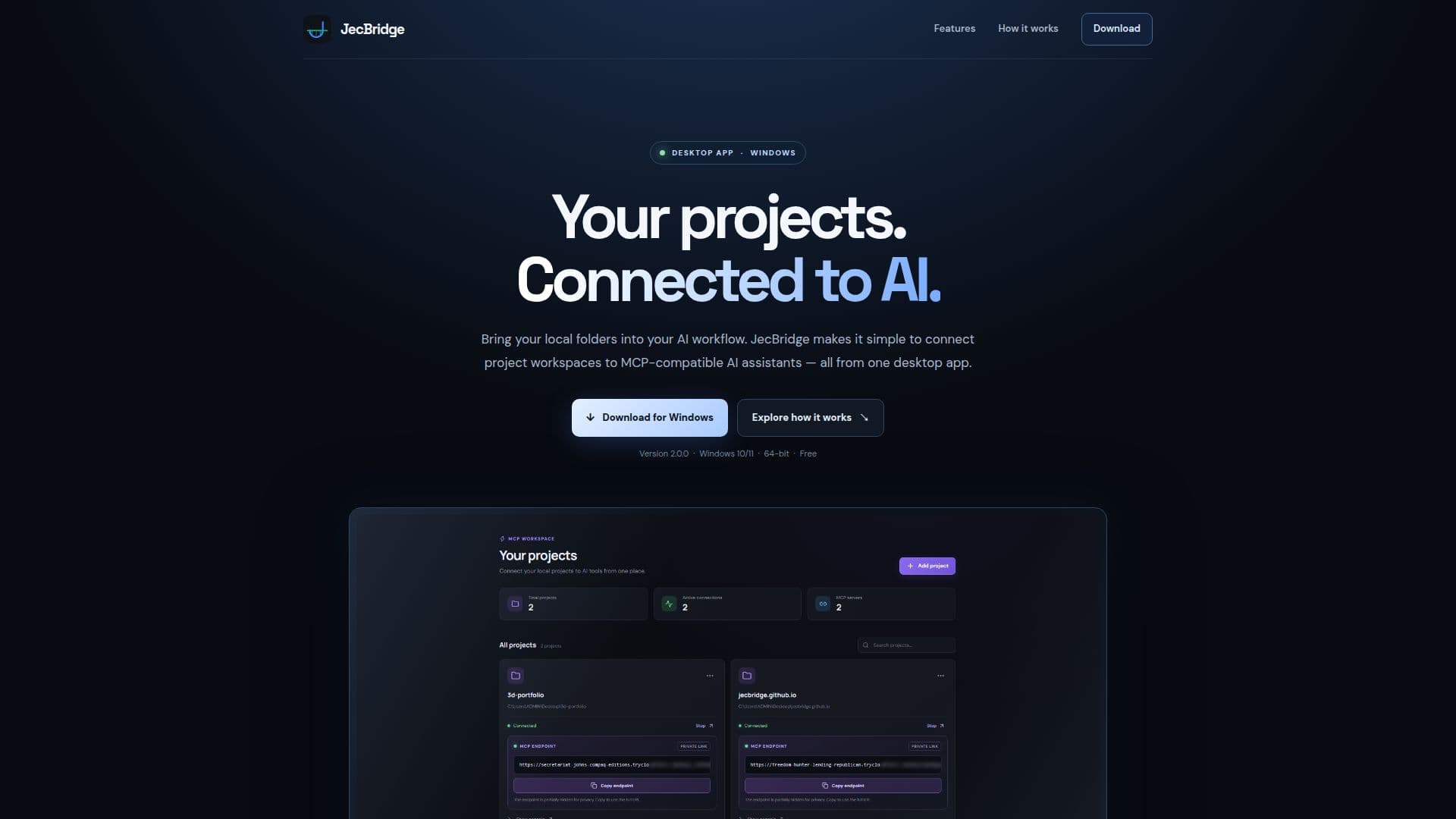
JecBridge is a desktop application designed to seamlessly connect local project folders with AI assistants that are compatible with the MCP (Machine Communication Protocol). This tool streamlines the process of integrating your existing project workspaces into an AI-driven workflow, making it accessible and efficient for users.
Read More
The application, currently at version 2.0.0, functions as a central control hub on your desktop. It allows users to select specific local folders they wish to link to AI tools, maintaining organization within a single workspace. A key feature is the one-click MCP connection, which enables users to quickly establish a project connection and obtain an MCP endpoint for use with their chosen AI client.
JecBridge enhances productivity by supporting reusable AI skills. Users can create a shared library of instructions and assign them to individual projects, ensuring consistent and tailored AI interactions. The platform also includes robust project controls, allowing users to easily enable or disable projects and manage access from a clear, intuitive interface. For convenience, the application offers in-app updates, simplifying the process of checking for, downloading, and installing new releases directly from the settings.
The entire process, from selecting a local folder to connecting an AI client, is designed to be completed in minutes, eliminating the need for complex terminal commands for everyday operations. It supports Windows 10/11 (x64 architecture) and is ideal for individuals or teams looking to integrate AI capabilities into their local development or creative projects with minimal setup. JecBridge aims to bridge the gap between local project management and advanced AI assistance, making AI workflows more accessible.
- CategoryAI DevOps & Cloud Tools
- DeploymentDesktop App
- PlatformsWindows 10/11
JecBridge's Core Features
Connects local project folders to AI assistants
Compatible with MCP (Machine Communication Protocol) AI tools
Lightweight desktop control center
Organizes projects in one desktop workspace
One-click MCP connection for projects
Generates MCP endpoint for AI clients
Supports reusable AI skills library
Assigns specific instructions to projects
Enables/disables project connections
Manages project access from a clear workspace
Provides in-app updates for new releases
No terminal commands required for daily use
Supports Windows 10/11 x64
How to use JecBridge?
Choose Project: Add the local folder you want your AI assistant to work with into JecBridge.
Start JecBridge Connection: Initiate the connection within the app and copy the displayed MCP endpoint.
Connect AI Client: Paste the copied MCP endpoint into your MCP-compatible AI client.
Begin Workflow: Start working with your AI assistant, leveraging the connected project data.
JecBridge's Use Cases
- AI-Assisted Code Development
- Creative Content Generation
- Data Analysis & Reporting
- Research & Document Processing
- Project Management Automation