
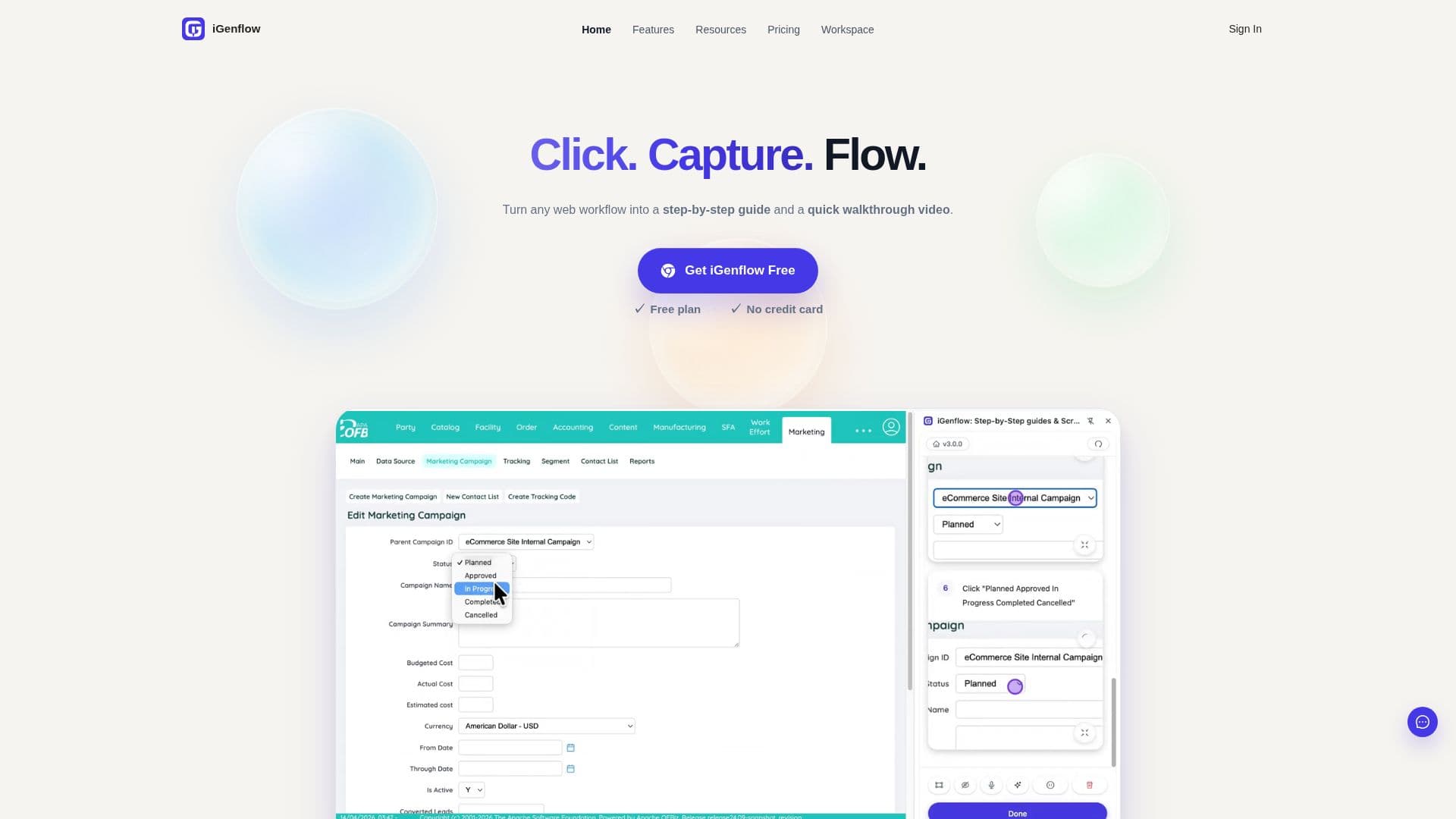
Description
iGenflow is a workflow-documentation tool that records how a task is performed and converts it into a polished step-by-step guide. As users work through a web page, the browser extension captures clicks, form inputs, navigation, screenshots, full-page captures, cursor positions, and page context, then assembles the whole process into an editable Flow document. Sensitive information can be blurred while recording.
Read More
For tasks the browser extension cannot capture, users can record desktop software, mobile apps, mini programs, and cross-app operations with system screen recording and upload the video. The AI detects valid actions from visual changes, splits them into steps, extracts a representative screenshot for each, and generates an editable visual workflow document.
Each captured Flow can be refined in a document editor: users rewrite step titles and descriptions, add headings, tips, alerts, links, tables, and notes, reorder or insert steps, and crop, replace, annotate, or blur screenshots. AI writing turns rough action records into clearer instructions, and speech recognition transcribes spoken narration and keeps it aligned with the matching steps and screenshots. A Continue Recording feature lets users add changed steps to an existing Flow without rebuilding it.
Finished guides can be viewed, presented, shared, or exported, including as Markdown for use in other documentation systems. iGenflow offers a free tier, with paid upgrades for longer workflows, advanced exports, and more AI capacity, and reports over 20,000 users.
- CategoryWorkflow Automation
- Pricing ModelFreemium
- DeploymentCloud
- PlatformsWeb
iGenflow's Core Features
Browser capture of clicks, inputs, navigation, screenshots, and cursor positions
Screen recording upload for desktop, mobile, and cross-app workflows
Automatic splitting of recordings into steps with key frames
Document editor with headings, tips, alerts, tables, and reordering
AI writing to turn rough actions into clear instructions
Speech recognition that aligns narration with steps and screenshots
Sensitive-info blur during capture
Continue Recording to update existing Flows without starting over
How to use iGenflow?
Start capturing: Use the browser extension or web app to begin recording your workflow.
Perform the task: Work through the process while iGenflow captures actions, screenshots, and narration.
Review the draft: Check the auto-generated steps, screenshots, and structure.
Edit and polish: Rewrite step text with AI, add headings and notes, and refine or blur screenshots.
Share or export: Present, share, or export the finished guide, including as Markdown.
iGenflow's Use Cases
- Customer onboarding guides
- Internal SOPs and training
- Product and feature documentation
- Support self-service
- Process handoffs